
Quick answer: Canva does not have a built-in skew or perspective tool. To change perspective, open Apps, search for Skew Image (horizontal and vertical tilt) or Transform Image (drag the corners to warp perspective), apply the effect, and click Add to Design. To simply tilt or angle an image, use Canva's rotate handle.
Changing image perspective is a simple way to make photos look more realistic and better aligned in a design. Canva's own editor can rotate and flip images, and apps inside Canva add skew and perspective controls, so you can tilt, skew, and warp images without needing Photoshop.
This tutorial shows how to change image perspective in Canva step by step. You will learn how to skew an image with an app, how to tilt or angle it with rotation, and how to warp its perspective so it fits naturally into any scene.
What is Skewing or Perspective
Skewing or changing perspective is the process of adjusting an image so its angles match a different viewpoint. Instead of keeping the image flat and straight, you pull or push the sides to make it look tilted or positioned in space.
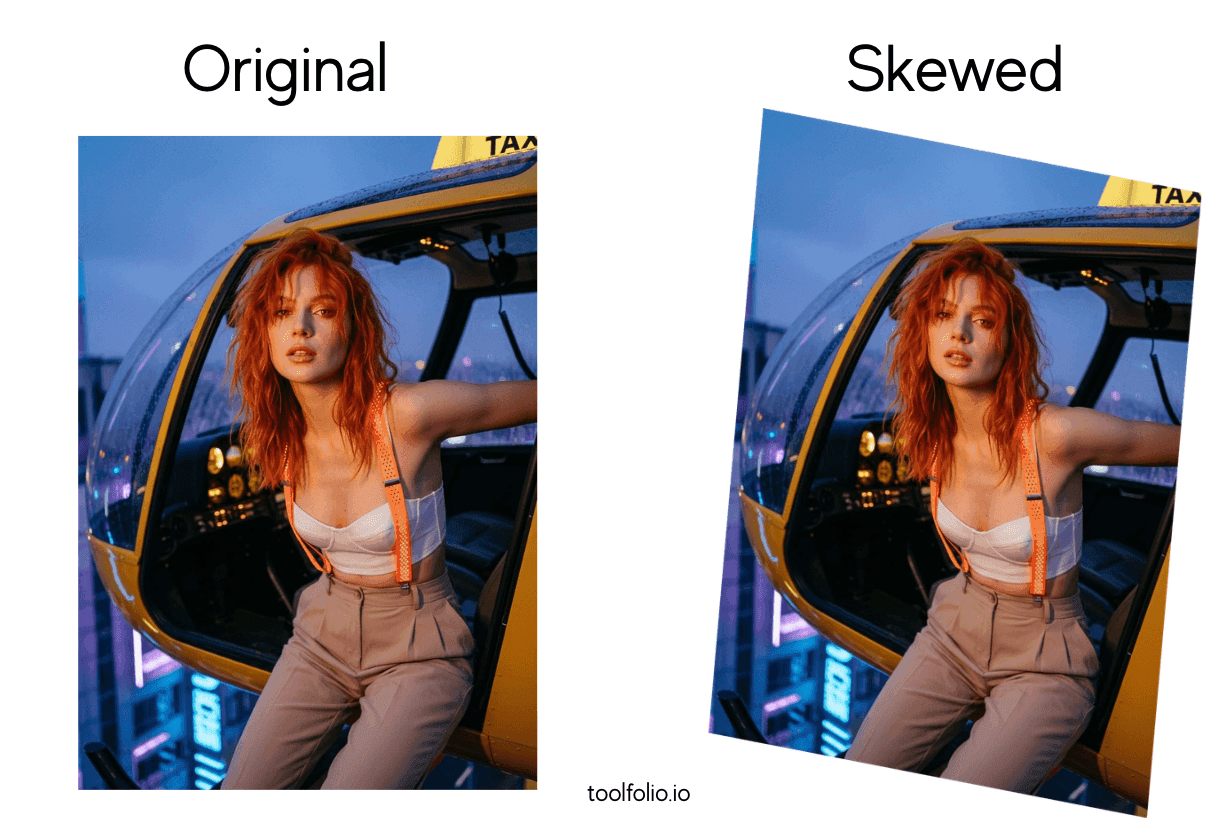
This creates depth and helps the image blend into a scene, like placing a screenshot on a laptop screen or making a photo match the angle of a notebook.
In design, perspective edits are useful when you want an image to look like it belongs in the real world instead of sitting flat on the canvas. Skewing makes objects feel more natural, especially in mockups, product demos, and layouts where you need visual alignment.
How to Change Image Perspective in Canva
Canva's editor can rotate and flip elements, but it cannot skew them on its own. For skew and perspective, you use an app from Canva's Apps panel.
Follow these steps to make your image match the angle of your design.
Step 1: Add Your Image to The Canvas
Open Canva and create a new design. Upload your image or choose one from the Photos tab.
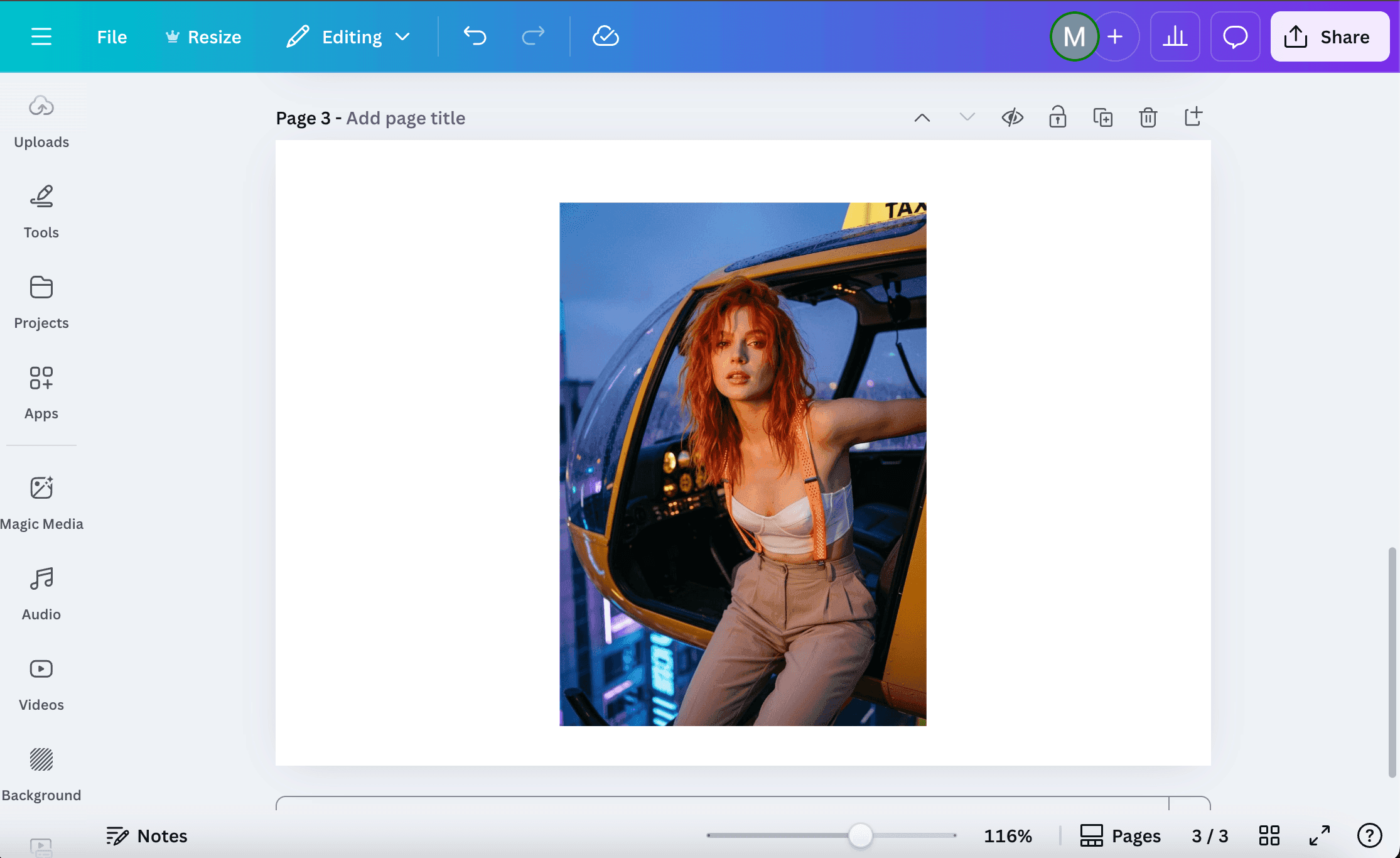
Place it on the canvas and resize it so you have enough room to edit the angles.
Step 2: Search for A Perspective App
Go to Apps in the left sidebar and search for Transform Image or Skew Image.
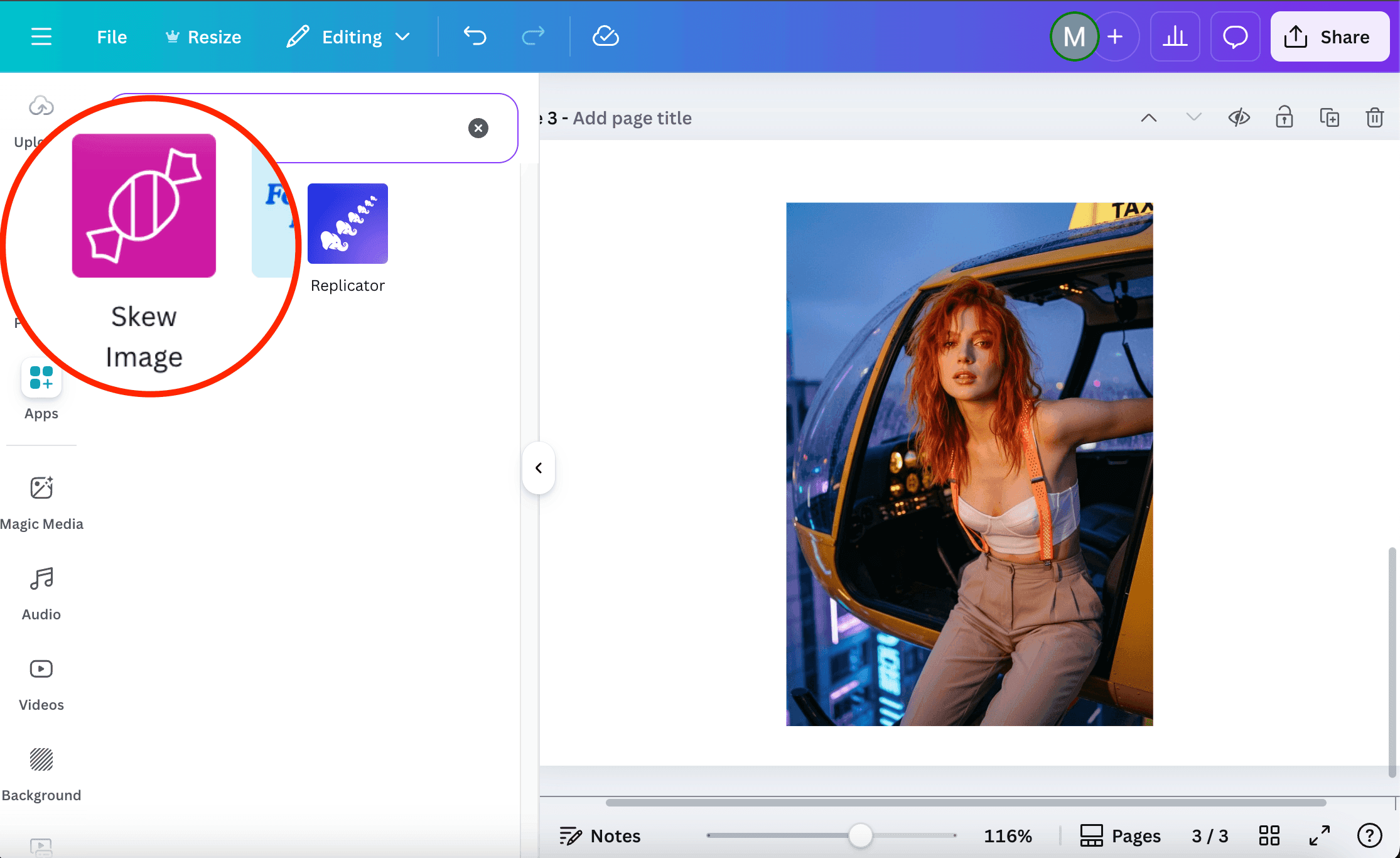
Skew Image tilts an image horizontally or vertically with sliders. Transform Image lets you drag each corner of the image to change its perspective freely. This tutorial uses Skew Image, but the workflow is similar in both.
Step 3: Apply Perspective Controls to Your Image
Select your image and open the app. You will see sliders (Skew Image) or draggable corner points (Transform Image).
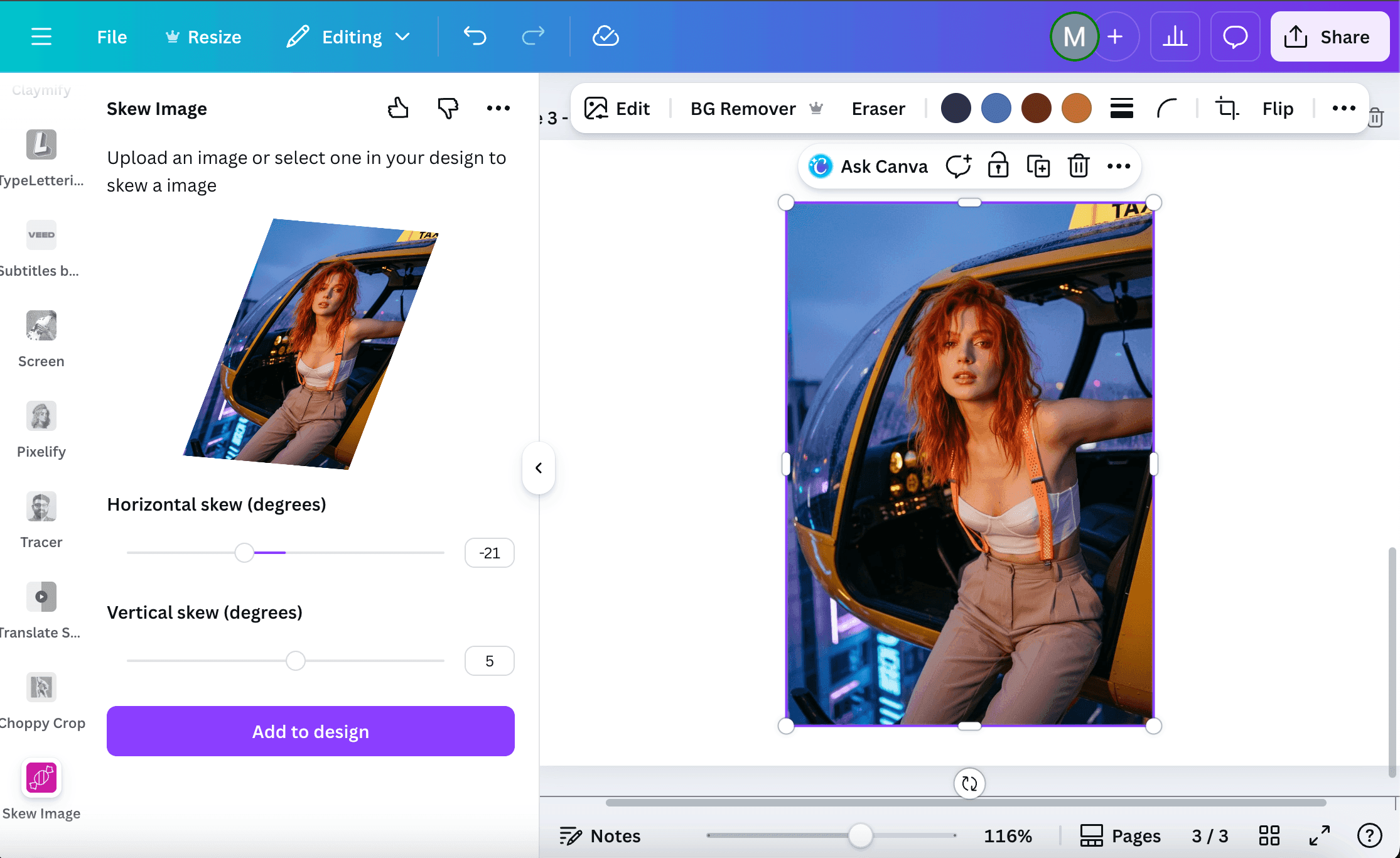
Use the Horizontal and Vertical skew sliders to tilt the image until it matches the angle you want. Small adjustments look more natural, so move slowly and preview as you go.
Step 4: Fine-Tune Alignment for A Natural Look
Click Add to Design to add the skewed image to the canvas. Resize and rotate the edited image to place it into your layout.
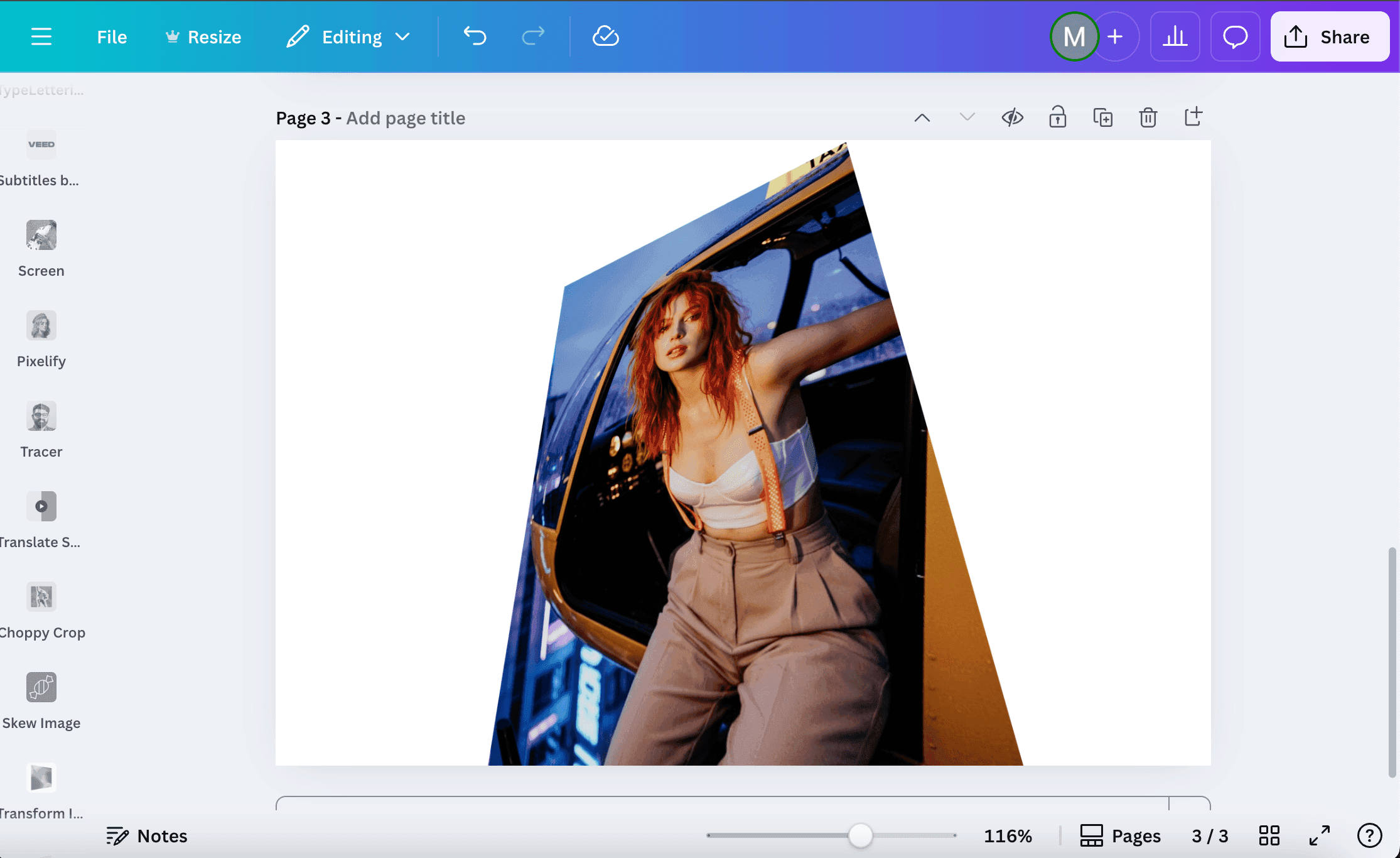
If the angle feels off, reopen the app and make small tweaks. Matching nearby lines or shapes in your design helps the perspective feel seamless.
How to Tilt or Angle an Image in Canva
If you only need the image at an angle, not a true perspective change, you do not need an app.
- Select the image on the canvas.
- Drag the rotate handle (the circular arrows icon below the element) left or right to tilt it.
- For an exact angle, click Position in the toolbar and type a degree value in the Rotate field.
- To mirror the image, use Flip in the toolbar and choose horizontal or vertical.
Rotation keeps the image flat, so it works well for playful layouts, collages and angled photo stacks. For a "lying on a table" or "on a screen" look, use the perspective warp below.
How to Warp Perspective in Canva
A perspective warp moves each corner of an image independently, so the image looks like it sits on a surface in 3D space.
Open Apps, search for Transform Image, and drag the four corners of your image until they line up with the surface you want to match, such as a laptop screen, a poster on a wall, or a page in a notebook. Then add the result to your design.
If you want to place a design on a device or product photo, Canva's Mockups app is another option. It places your design onto mockup photos that already have the right angle, so you do not have to warp anything by hand.
FAQ
Does Canva have a perspective tool?
Not in the core editor. Canva lets you rotate and flip elements, and you add skew or perspective with apps such as Skew Image and Transform Image from the Apps panel.
How do I skew an image in Canva?
Open Apps, search for Skew Image, select your image, and use the horizontal and vertical sliders to tilt it. Click Add to Design to place the skewed image on your canvas.
How do I tilt or angle an image in Canva?
Select the image and drag the rotate handle below it, or click Position and enter an exact degree in the Rotate field.
Is there a perspective warp in Canva?
Yes, through the Transform Image app. It lets you drag each corner of an image to warp its perspective.
Related Canva Guides
- How to choppy crop in Canva for a rough, hand-cut image edge.
- How to make a gradient background in Canva for a backdrop behind your angled images.
And That's a Wrap
That is all it takes to adjust image perspective in Canva. With a quick skew, tilt or perspective warp, flat images fit better into scenes and mockups, giving your design more depth. Small changes make a big difference, and Canva's apps keep the process simple.