
Choppy Crop is a Canva app that crops an image into a rough, uneven, hand-cut shape. You find it in the Canva editor under Apps by searching "Choppy Crop", click points around your subject to draw the outline, and click Apply Crop to get a scrapbook-style cutout.
Cropping in Canva is usually clean and straight, but sometimes you want a rough cut that looks handmade and imperfect. A choppy crop gives images a scrapbook feel, adds character, and makes designs stand out when smooth edges feel too polished.
This guide shows how to create that uneven cutout look in Canva with the Choppy Crop app, plus what to do if Choppy Crop is not working.
After a few steps, you will be able to turn regular images into rough, cut-style visuals that look intentional and creative.
What is a Choppy Crop
A choppy crop is a style of cutting an image so the edges look rough, uneven, and hand-cut instead of smooth and straight. It gives photos a natural cutout feel, similar to paper scraps in a collage or elements clipped with scissors.

Designers use this style to make images look less digital and more handmade, adding texture and personality to layouts.
Steps to Choppy Crop in Canva
Choppy Crop is an app in Canva's Apps panel that lets you draw your own outline and crop any picture into a custom shape. Follow the steps below to create the choppy crop effect:
Step 1: Set up Your Canvas and Choose a Picture
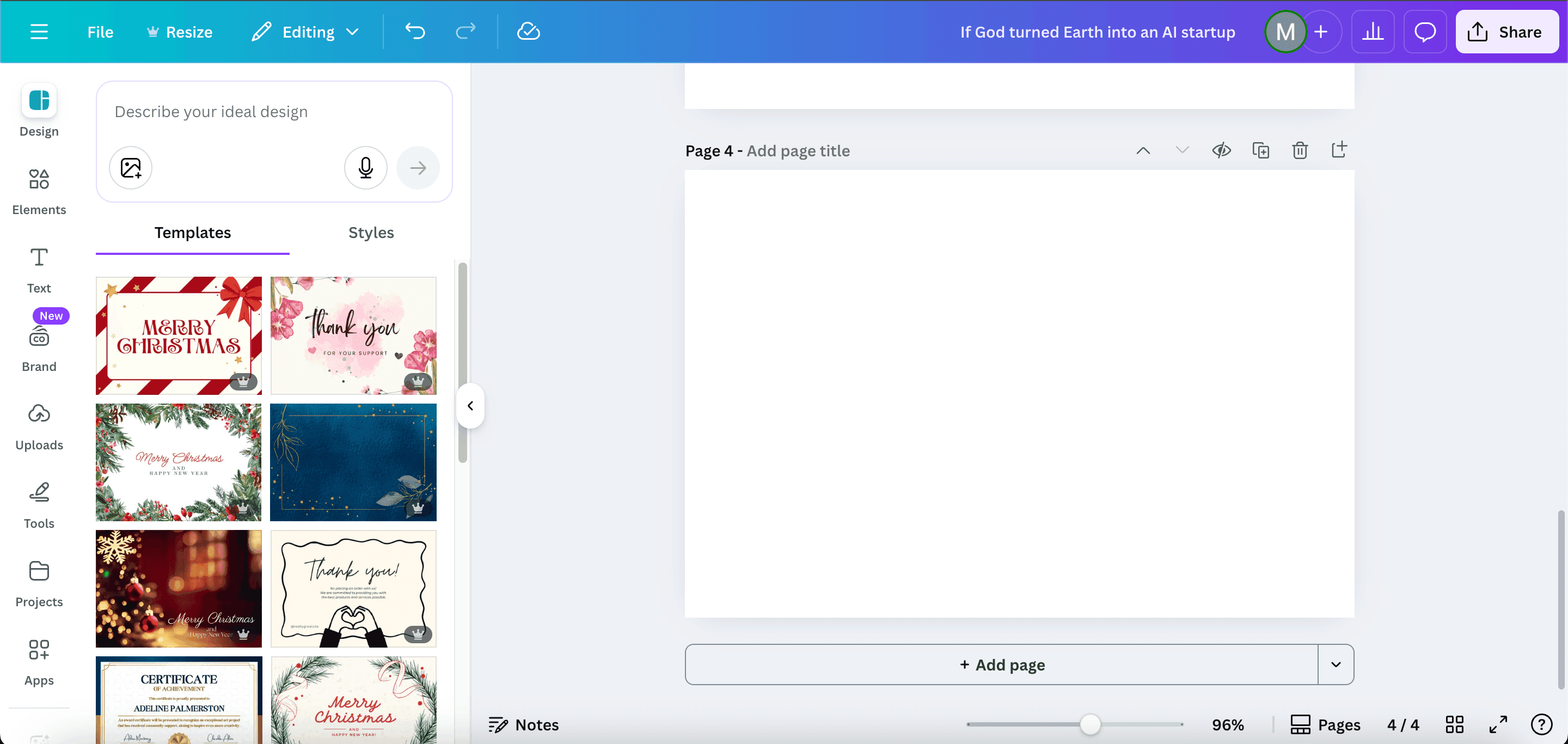
Open Canva and start with a blank design.
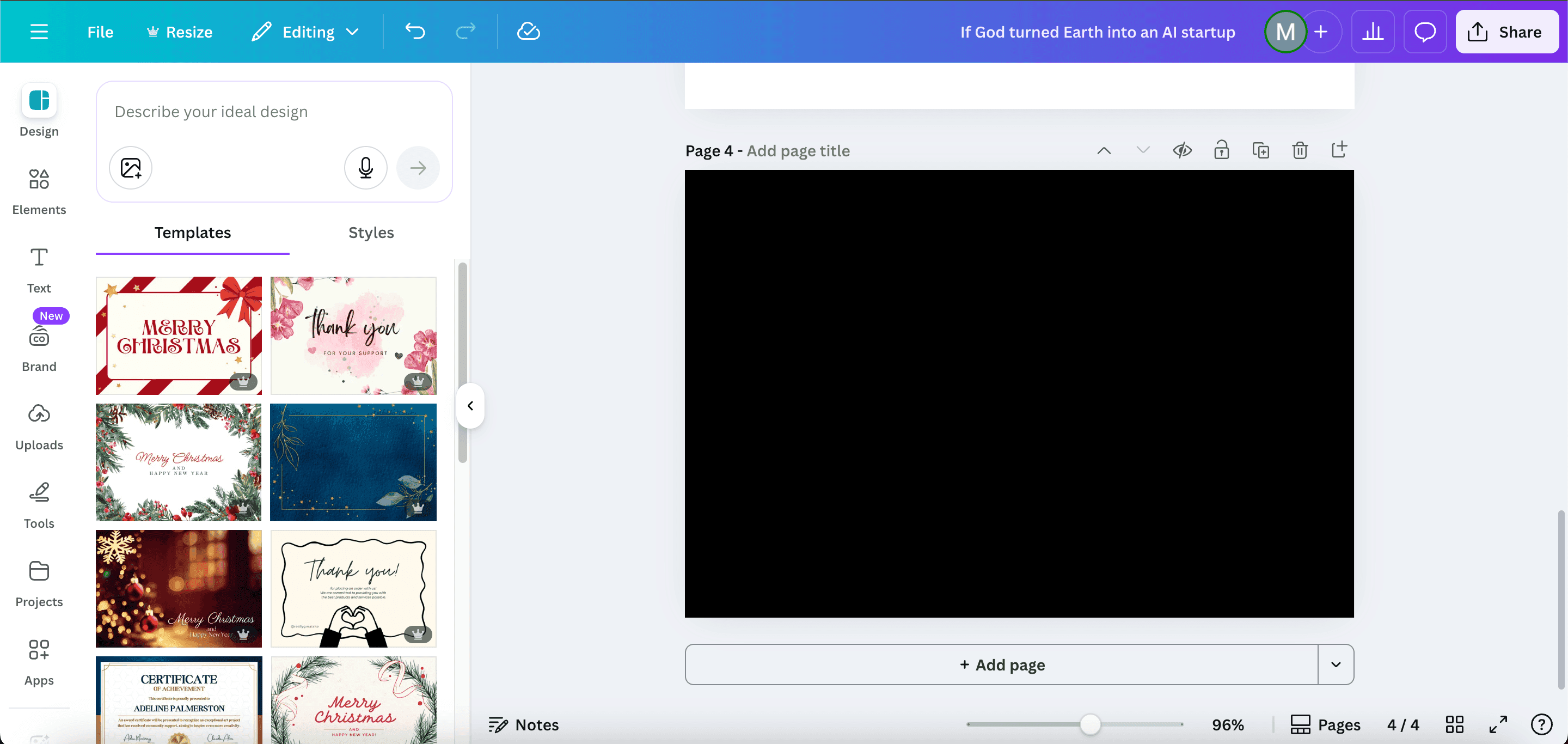
Change the background to a bold color so your image stands out.
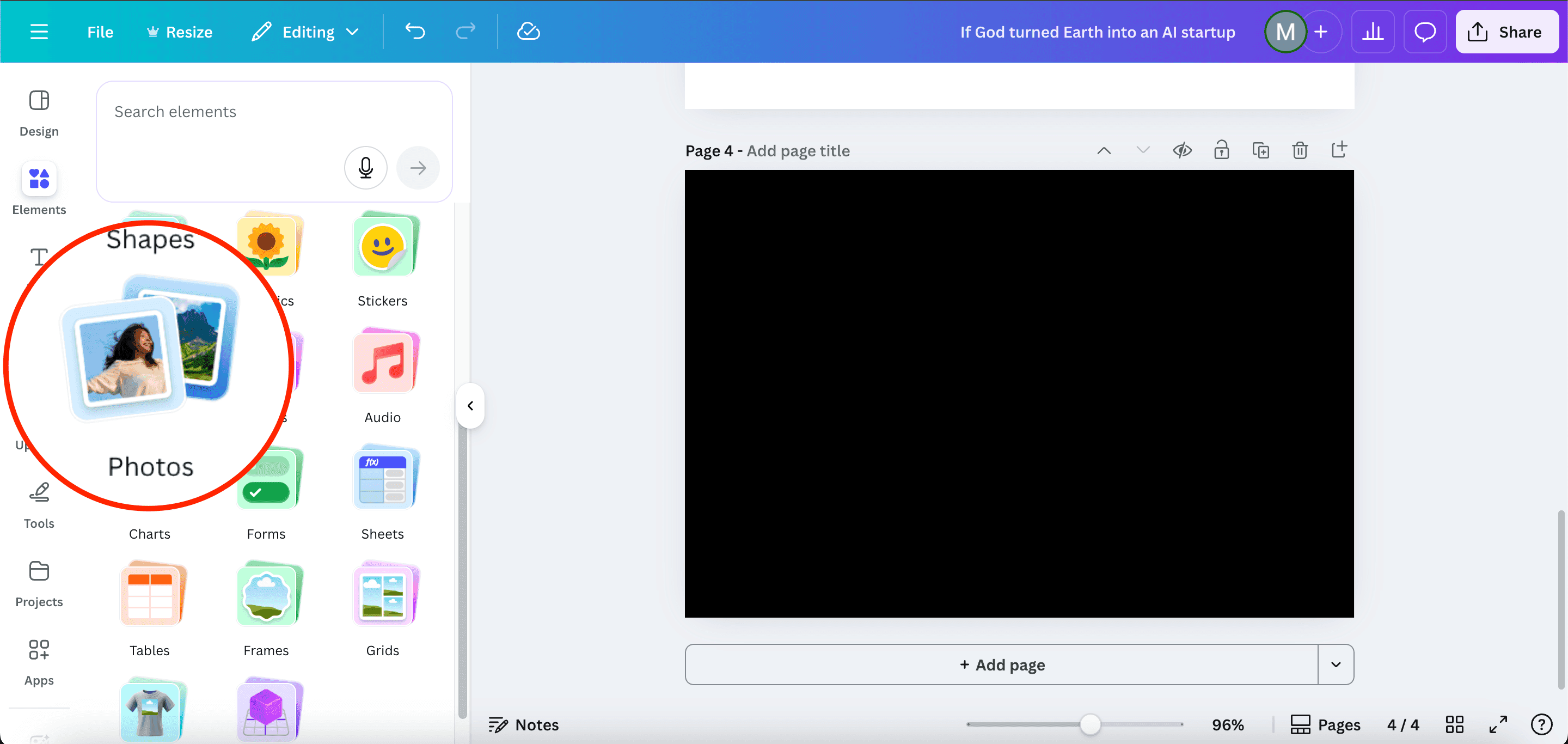
Go to the Elements or Photos tab, search for an image you like, and add it to your canvas.
Any subject works, but clear shapes are easier to outline.
Step 2: Install and Open the Choppy Crop App
In the left sidebar, click Apps and search for Choppy Crop. It is not part of Canva's regular Crop button, so you will only find it in Apps.
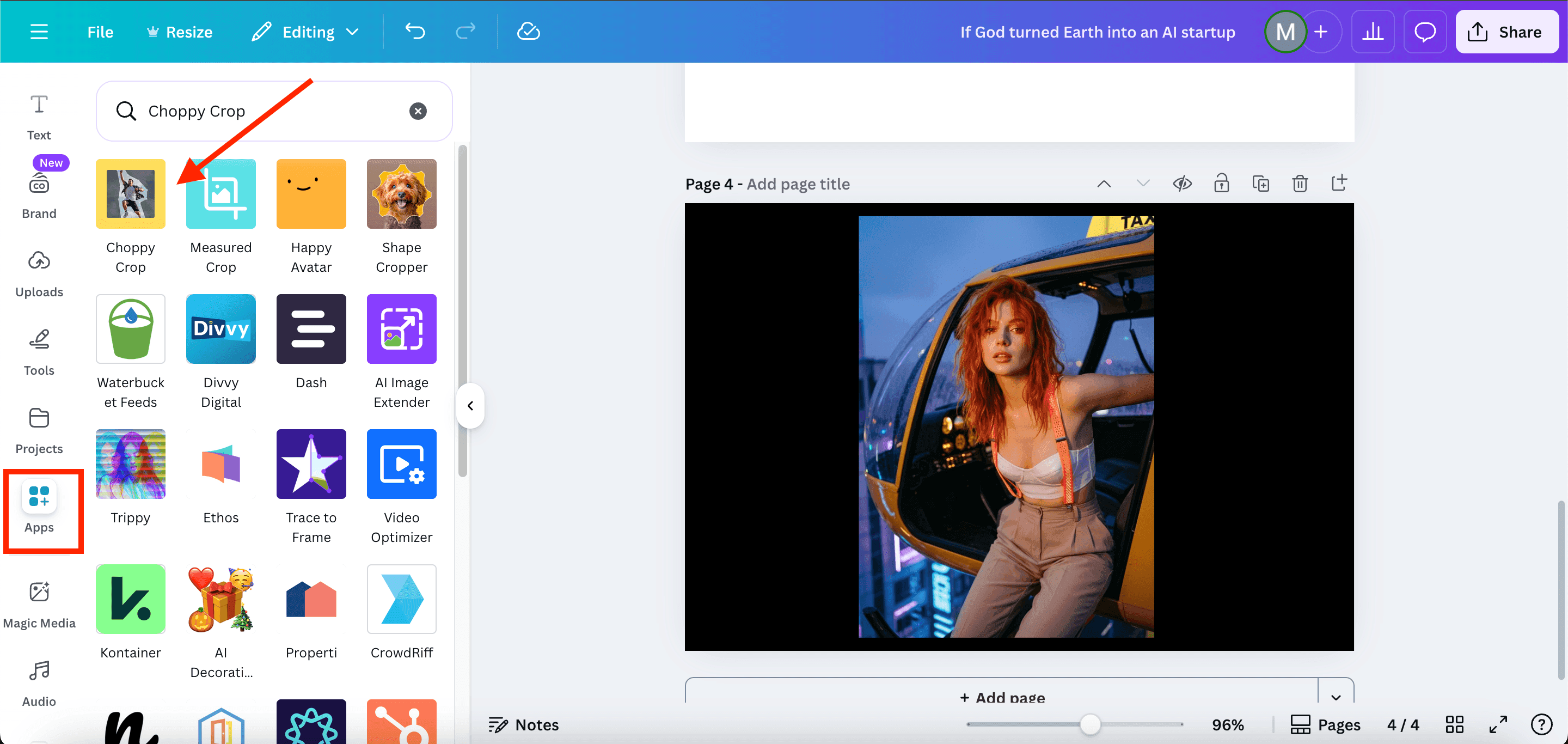
Select the yellow icon and install it.
The app will open on your screen and load options to let you outline your image manually.
Step 3: Draw Your Custom Rough Outline
Click on your image to start placing anchor points.
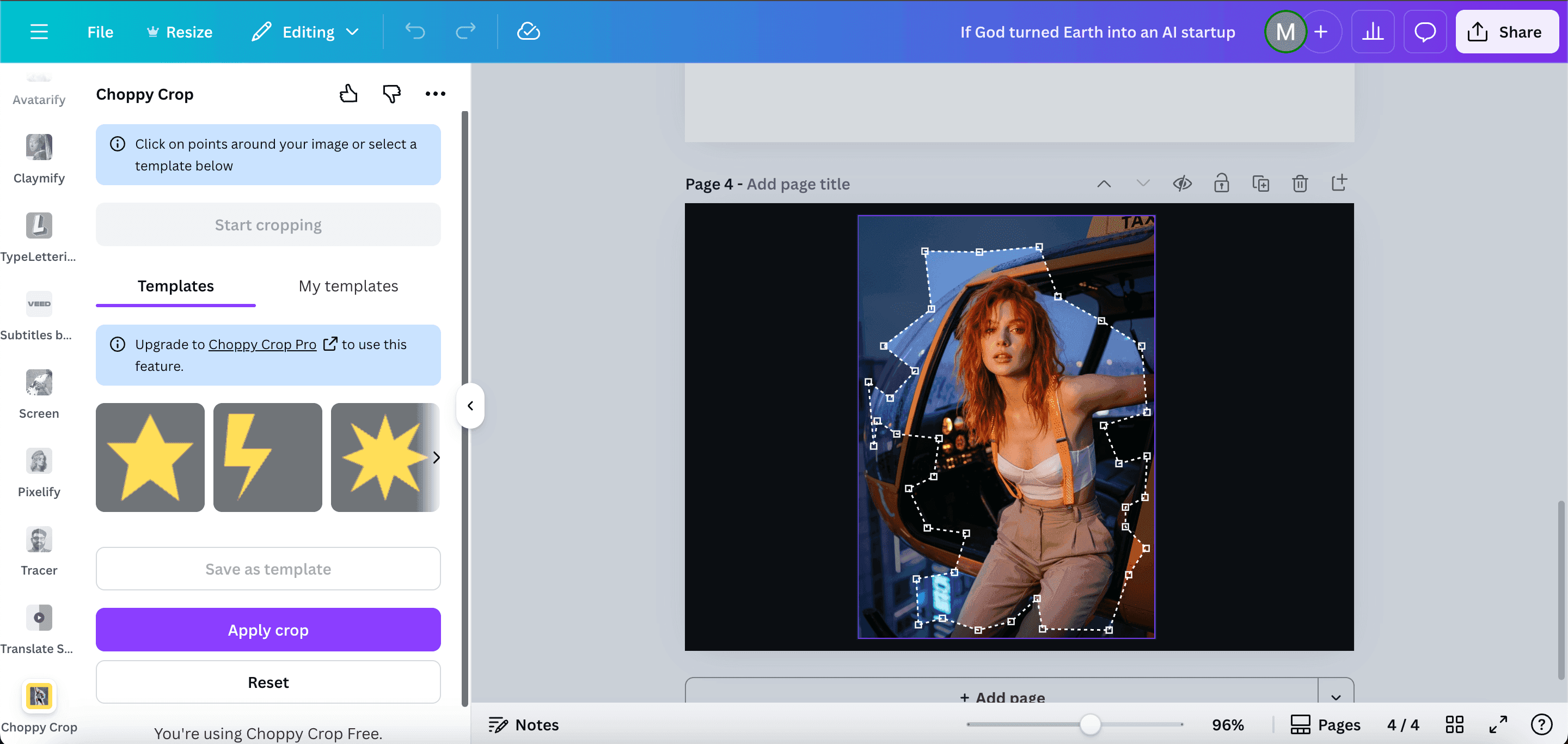
Each click adds a new point and forms the rough zigzag line around the subject. Continue clicking around the edge of the image until you reach the starting point again. This creates a full outline and shows a preview of the crop.
Make sure not to click outside the image, or you'll have to start adding anchor points from the beginning.
When the preview looks right, click Apply Crop and that's it.
Step 4: Add a White Outline to Enhance the Cutout Look
Select your cropped image and open Edit Image.
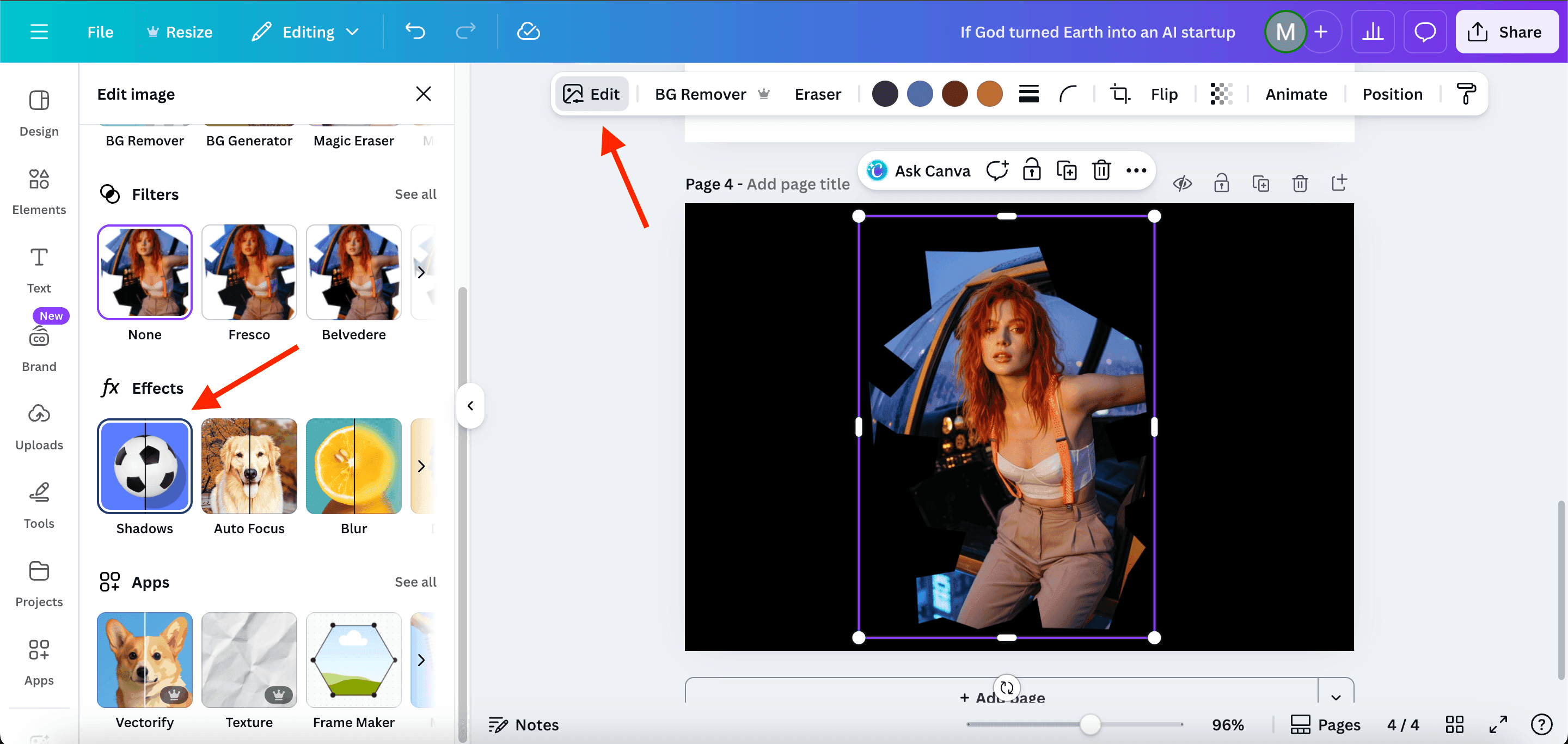
Go to Shadows and choose Outline.

Make the outline white and increase the thickness until it looks like a real cutout. This makes the edges pop and gives a scrapbook feel.
Choppy Crop Not Working? Try These Fixes
If clicks are not registering or the crop never finishes, work through these checks:
- Close the outline. The preview only appears once your points form a closed shape, so finish by clicking back on your starting point.
- Keep every click inside the image. A click outside the image resets the outline, so you have to start again.
- Reopen the app. Close Choppy Crop, select the image again, and reopen the app from Apps.
- Fix the browser. Update your browser, try a private or incognito window, or clear your cache. These are Canva's standard fixes when apps do not load or respond.
- Check Canva's status. If other apps are failing too, check the Canva status page for an outage.
- Check your plan. The free version covers basic use, while Choppy Crop Pro adds unlimited crops, so a limit message may mean you have used the free allowance.
- Contact the developer. Choppy Crop is made by a third-party developer, not Canva. Support is available through the Choppy Crop website.
FAQ
Where is Choppy Crop in Canva?
Choppy Crop is in the Apps panel in the left sidebar of the Canva editor. Search for "Choppy Crop", open it, and select your image. It is not inside Canva's regular Crop menu.
Is Choppy Crop free?
Choppy Crop has a free version with basic features. At the time of writing (October 2026), Choppy Crop Pro costs $9.99 per month, $39 per year, or $99 for lifetime access, and adds unlimited crops and saved shape templates.
Can I make a choppy crop without the app?
Canva's built-in Crop tool gives straight edges, and frames use preset shapes. For an irregular, hand-cut outline that you draw point by point, the Choppy Crop app is the simplest option.
Related Canva Guides
- How to change image perspective in Canva to skew or tilt your cutouts.
- How to separate layers from any image when you want to pull a subject out of a photo first.
And That's a Wrap
That is all you need to make a rough cutout effect in Canva.
The Choppy Crop app keeps the process simple while giving you full control over the outline. Add a white border and light animation, and your images start to look handmade.