
To use ForgeGUI in Roblox Studio, install the plugin from the Creator Store, click Connect, and pair Studio with your ForgeGUI account. Then import a GUI or thumbnail from your Assets. If it will not connect, check the plugin's network permission in Plugin Management first. This guide comes from public docs, not hands-on testing.
ForgeGUI on Toolfolio. Updated October 26, 2026.
Which ForgeGUI plugin do you need?
Searching "ForgeGUI roblox" turns up more than one plugin and more than one site, which is why many setup guides contradict each other. Here is what the public pages say today.
| Plugin or route | What it does | Where the instructions live |
|---|---|---|
| ForgeGUI Roblox Plugin (Creator Store asset 103394573143871) | Imports your GUI and Thumbnail images into Studio as ImageLabels | The forgegui.net plugin page and the Creator Store listing |
| ForgeGUI Connect (Creator Store asset 79828660244419) | Prompt-driven scripting inside Studio (plain-English requests that produce Luau) | A July 2026 Roblox DevForum post and a YouTube Short that tells you to search "Forge GUI Connect" in the Creator Store |
| Manual export (no plugin) | Download assets from ForgeGUI and bring them in yourself | The forgegui.com docs |
Two cautions before you follow any of them:
- We could not open the ForgeGUI Connect listing. The Creator Store page for asset 79828660244419 returned "not found" when we checked on October 26, 2026, even though the DevForum post links to it. We cannot confirm it is installable right now. The plugin-install steps below are for the ForgeGUI Roblox Plugin, which does have a live listing.
- Two sites, one name. The ForgeGUI Roblox Plugin's own instructions and pairing flow sit on forgegui.net, while the main product and docs sit on forgegui.com. We could not verify from public pages how the two are connected (forgegui.net's terms name AIMarvex Labs LLC as the operator). Check which site your account is on before you pair, and read the ForgeGUI tool page for the product overview.
What you need before you start
- Roblox Studio, with a place open (stop Play mode before connecting).
- A ForgeGUI account. You only need to sign in when you start connecting, and reading the guide is public.
- A finished GUI or Thumbnail in your ForgeGUI Assets library. Generating new artwork spends credits; importing an existing image does not.
- Your own personal Roblox account for uploads (see the publishing step below).
On cost: ForgeGUI has a free plan. When we checked on October 26, 2026, the public plans page listed 10,000 credits a month for Free, with paid plans from $22 a month for Creator ($18 a month billed yearly). The details are in Is ForgeGUI Free? Pricing, Credits and Plans Explained.
How to install the ForgeGUI plugin and connect Studio
These steps follow the forgegui.net plugin page and the Creator Store description.
- Install the plugin. Open the ForgeGUI Roblox Plugin listing in the Creator Store and click Get Plugin. The listing was created October 19, 2026 and updated October 20, 2026, so it is brand new.
- Open your project. Load the place you want to import into, and stop Play mode.
- Open the plugin. Go to the Plugins tab in Studio and launch ForgeGUI.
- Allow the network request. The page says to allow the plugin's request to communicate with forgegui.net. Approve it when Studio asks.
- Click Connect in the plugin. It shows a pairing code.
- Enter the code on the website. On the plugin page, use Connect Studio, enter the pairing code, and approve your website account in the Studio window. Codes expire after five minutes.
- Pick the right Studio window. If you have several projects open, select the one you want, because pairing sets the destination project.
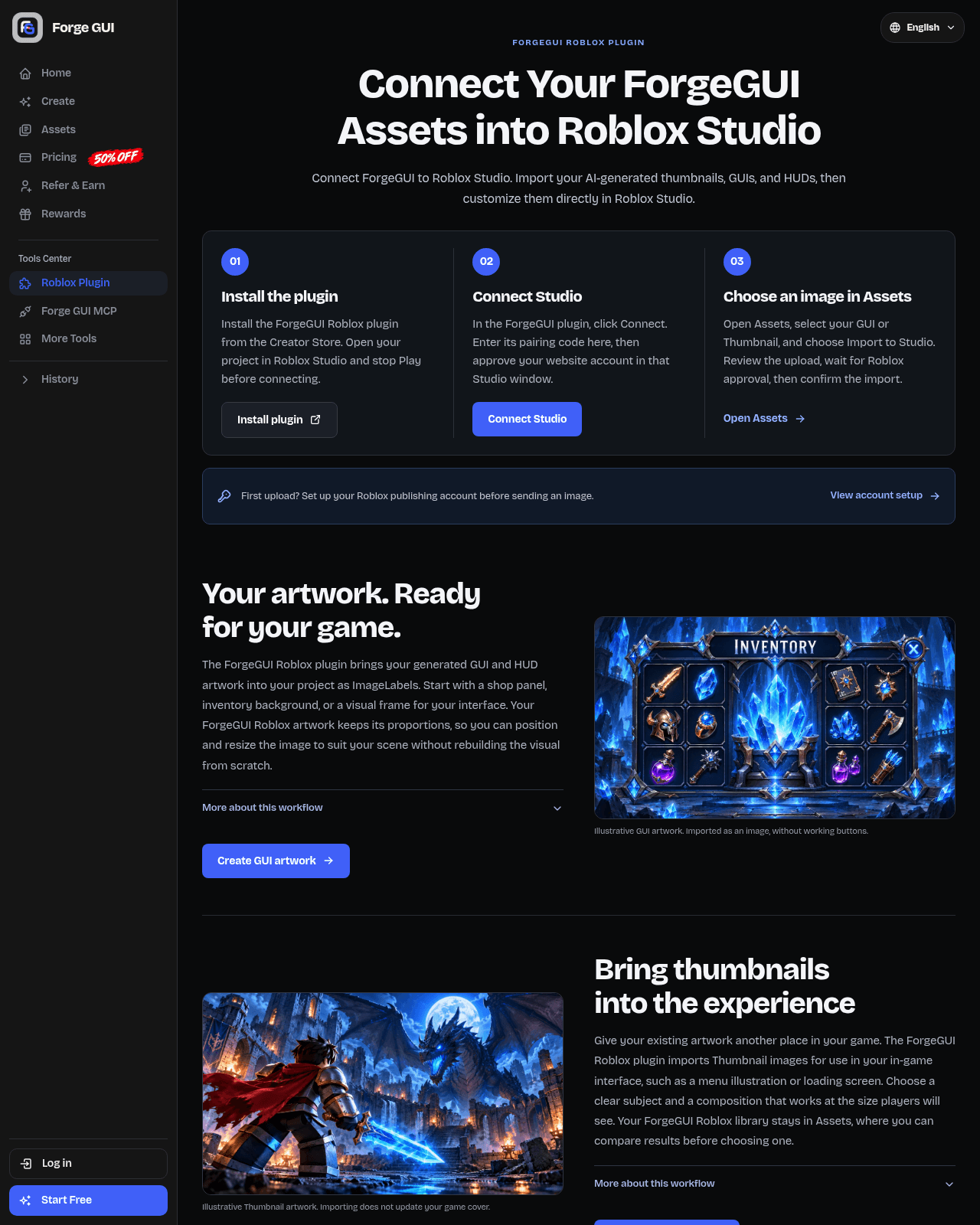
The three-step flow on the forgegui.net plugin page (screenshot taken October 26, 2026).
Set up your Roblox publishing account
The page treats pairing and publishing as two separate connections. Pairing picks your Studio project. Publishing picks the Roblox account that receives uploaded artwork. You need publishing set up before your first import.
- In Roblox Creator Hub, open Credentials and create a personal Open Cloud API key with Assets Read and Write permissions.
- On the ForgeGUI website, open the plugin page's publishing settings and enter the key plus the numeric user ID from your Roblox profile URL.
- Never enter your Roblox password or a browser cookie. The page says the plugin itself never asks you to paste a key into Studio.
For your first import, the page recommends using the same personal Roblox account in Studio and in the publishing settings. Team assets are not supported by this publishing flow. Changing or disconnecting the key needs a website login from the last ten minutes, and disconnecting does not revoke the key in Roblox, so revoke it there too if you stop using the plugin.
How to import a GUI or thumbnail into Studio
- Open Assets on the ForgeGUI website and select a completed GUI or Thumbnail you own.
- Choose Import to Studio.
- Review the upload, then confirm "Upload this image to Roblox".
- Wait for Roblox moderation. If the result is uncertain, check the existing upload in Creator Dashboard instead of submitting it again.
- Choose Preview import, then Confirm & send to Studio.
- Click Import reviewed images, then press Play to check how it looks in the game.
The image arrives as an ImageLabel, and you can move, resize and adjust its transparency like any other Studio object. Thumbnails are added as in-game UI images. They do not change your game cover. Use Studio Undo to revert an applied import.
How to import ForgeGUI assets without the plugin
You do not have to use the plugin. The forgegui.com docs describe a manual route:
- GUI frames, icons and thumbnails export as transparent PNGs. Upload them to Roblox as image assets, then reference them from your ImageLabels and ImageButtons.
- 3D models export with materials bundled. The docs recommend the
.rbxmexport to drop assets straight into Studio with materials intact. - Re-exports replace the earlier file, so your Studio links keep pointing at the latest version.
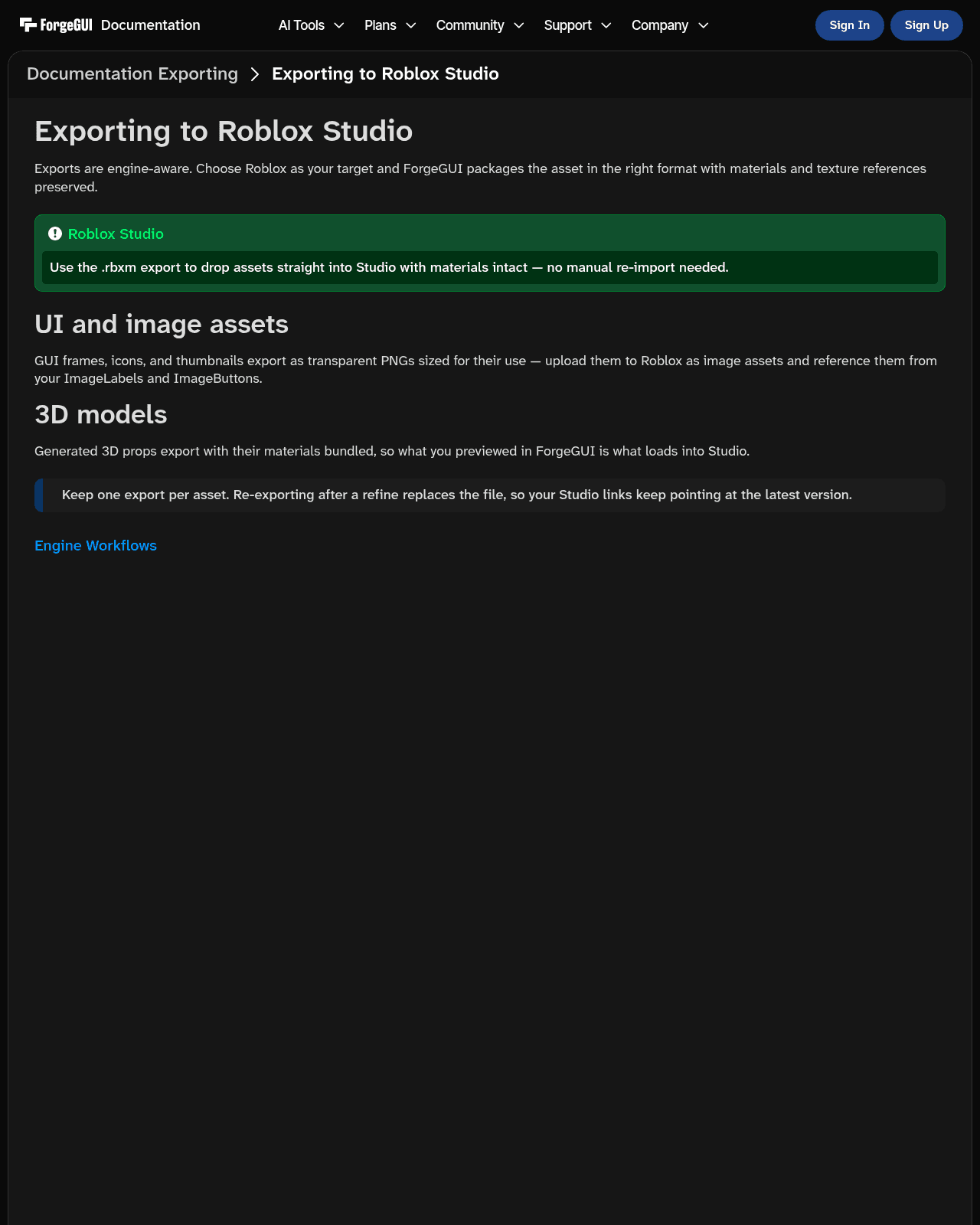
The "Exporting to Roblox Studio" page on forgegui.com/docs (screenshot taken October 26, 2026).
ForgeGUI plugin not connecting: fixes to try
Start at the top and work down.
- Check the plugin's network permission in Plugin Management. Roblox asks you to approve a plugin the first time it contacts a web address, and you can change or revoke those approvals in the Plugin Management window. ForgeGUI's own FAQ says to allow network access for the plugin in Plugin Management when Studio shows "waiting to reconnect". If you clicked Deny, flip it back there.
- Turn on Allow HTTP Requests as a quick check. A top-ranking third-party guide (nilo.io) says the fix is File → Experience Settings → Security → Allow HTTP Requests. Roblox's docs say that setting enables HttpService requests from your game, and describe plugin web access as a separate per-plugin permission. Roblox's 2020 plugin-permissions announcement also says plugins ignore that game setting. We have not tested whether it changes anything for ForgeGUI. It is harmless to switch on while you troubleshoot, but do not stop there if it does not help.
- Generate a fresh pairing code. Pairing codes expire after five minutes, and restarting Studio requires fresh pairing.
- Stop Play mode and select the right window. The page asks you to stop Play before connecting and to pick the intended Studio window if several are open.
- Reinstall from the Creator Store, then restart Studio. Users in a recent Reddit thread about the older ForgeGUI Connect plugin reported that uninstalling and reinstalling did not clear their error, which suggests this is not always enough. We could only see the thread's search snippet.
- Check the account link. Pairing and publishing are separate. If the connection works but the upload fails, the likely suspects are the Open Cloud key (permissions or user ID) and Roblox moderation rather than the pairing itself. This is our reading of the docs, not a tested diagnosis.
- Check Roblox moderation. An upload still under review cannot be imported yet.
If none of these work, the plugin is brand new (October 2026), so ask ForgeGUI through its own support channels rather than guessing.
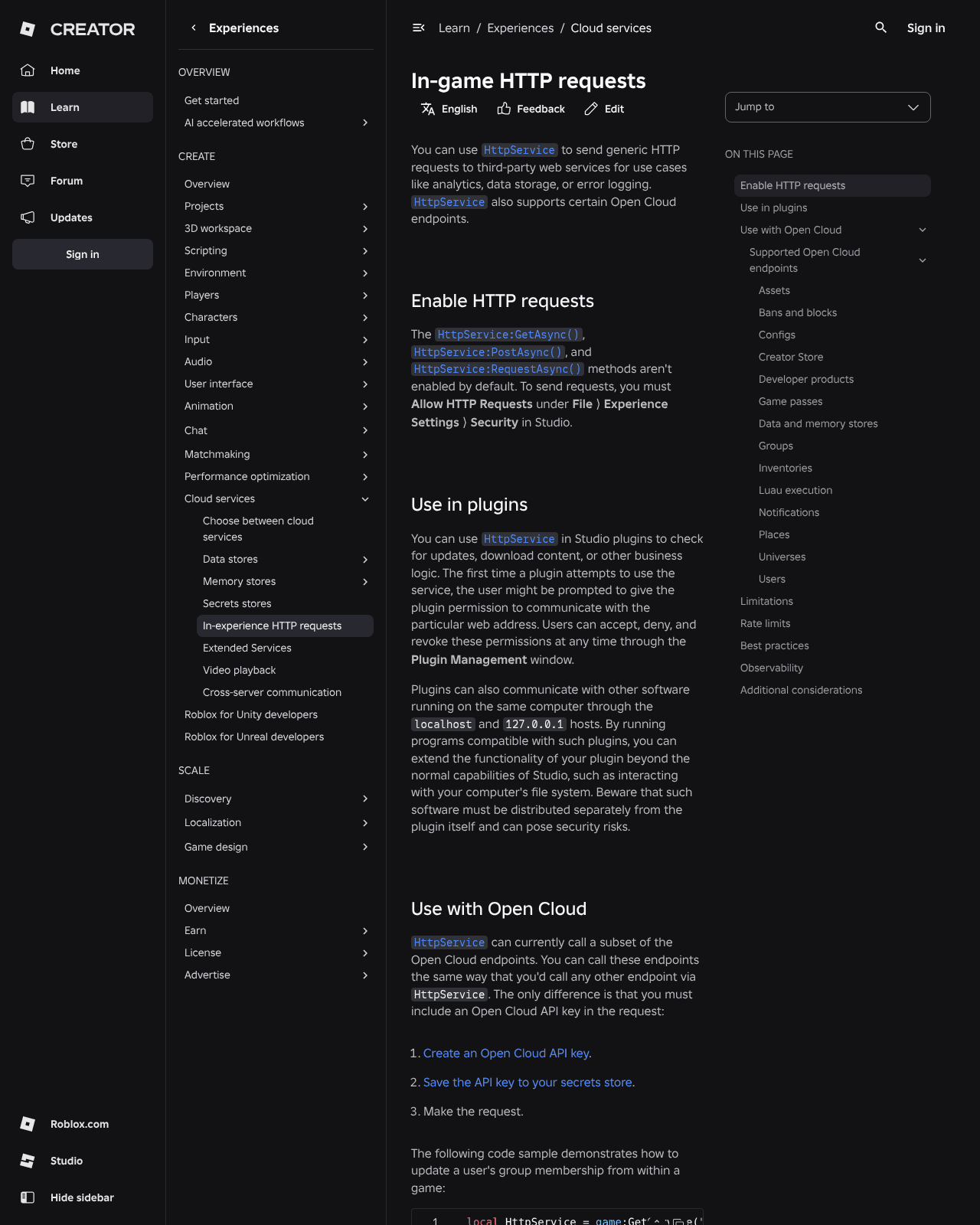
Roblox's docs describe the game-level toggle and the separate per-plugin permission (screenshot taken October 26, 2026).
What the ForgeGUI plugin does not do
- No working buttons. An imported GUI is a single image. A button drawn inside it is still a picture, so you add your own interface objects and scripts for interaction.
- No cover change. Thumbnails do not update your game cover or publish your experience.
- Image types only. The plugin supports GUI and Thumbnail images, not other asset types.
- No script access. The page says this edition does not read, edit or execute scripts, and shares only the StarterGui layout and selection needed for reviewed imports. That is the vendor's claim, which we could not check.
FAQ
How do I connect ForgeGUI to Roblox Studio?
Install the ForgeGUI Roblox Plugin from the Creator Store, open it from the Plugins tab with your project loaded and Play stopped, click Connect, and enter the pairing code on the forgegui.net plugin page. Approve your website account in the Studio window. Then import from your Assets.
Why isn't my ForgeGUI plugin working?
Start with the plugin's network permission in Plugin Management, then try a fresh pairing code (they expire after five minutes), stop Play mode, and pick the right Studio window. Turning on Allow HTTP Requests is a cheap extra check, but Roblox's docs describe plugin web access as a separate permission.
Do I need to turn on Allow HTTP Requests for ForgeGUI?
One top-ranking third-party guide (nilo.io) says yes. Roblox's docs say that setting covers HttpService calls from your game, and plugins have their own per-address permission. We have not tested ForgeGUI with the setting on or off, so treat it as something to try, not a confirmed requirement.
Is ForgeGUI free?
Yes, there is a free plan. When we checked on October 26, 2026 the plans page listed 10,000 credits a month, and importing an existing image into Studio uses no credits. Generating new artwork does. See the full ForgeGUI pricing breakdown.
Is ForgeGUI legit and safe?
Opinions are mixed. The Creator Store listing for the plugin showed 89% positive votes from 20+ votes on October 26, 2026, while a Reddit thread calls ForgeGUI a scam over its free and unlimited claims, and a DevForum reply calls its promo post spam. Practical precautions: use the free credits to judge output first, scope your Open Cloud key to Assets Read and Write only, never share your Roblox password, and revoke the key in Roblox if you stop using the tool.
How do I import a ForgeGUI image into Roblox Studio?
With the plugin: choose Import to Studio in Assets, confirm the upload, wait for Roblox moderation, then use Preview import and Confirm & send to Studio. Without it: export a PNG, upload it to Roblox as an image asset, and reference its ID from an ImageLabel.
Can ForgeGUI make my buttons work?
No. A GUI imported through the plugin is an image. You still add buttons and Luau scripts in Studio. ForgeGUI's separate scripting plugin (ForgeGUI Connect) is meant to help with that, but we could not open its listing to confirm it is available.
How much does ForgeGUI cost?
The free plan has 10,000 credits a month. On the public plans page on October 26, 2026, paid plans started at $22 a month for Creator ($18 a month billed yearly) and went up to $200 a month for Studio ($160 a month billed yearly). An earlier Basic plan at $6 a month was no longer listed. Prices and promotions can change, so confirm on forgegui.com.
How we checked this guide
We did not install or run ForgeGUI. Everything here comes from public pages: the forgegui.net plugin page, the forgegui.com docs, the Roblox Creator Store listing, Roblox's Creator Docs and DevForum, and a YouTube Short, all read on October 26, 2026. Where a source is the vendor's own claim, or where sources disagree, we say so above. Read the ForgeGUI tool page for the product itself.