

Quick answer: A single Google Flow generation is 4, 6 or 8 seconds long with Veo 3.1 (up to 10 seconds with Gemini Omni Flash). To make a longer video, use Extend: Flow generates a new segment that continues from the last second of your clip, and you can repeat it to build a video lasting a minute or more.
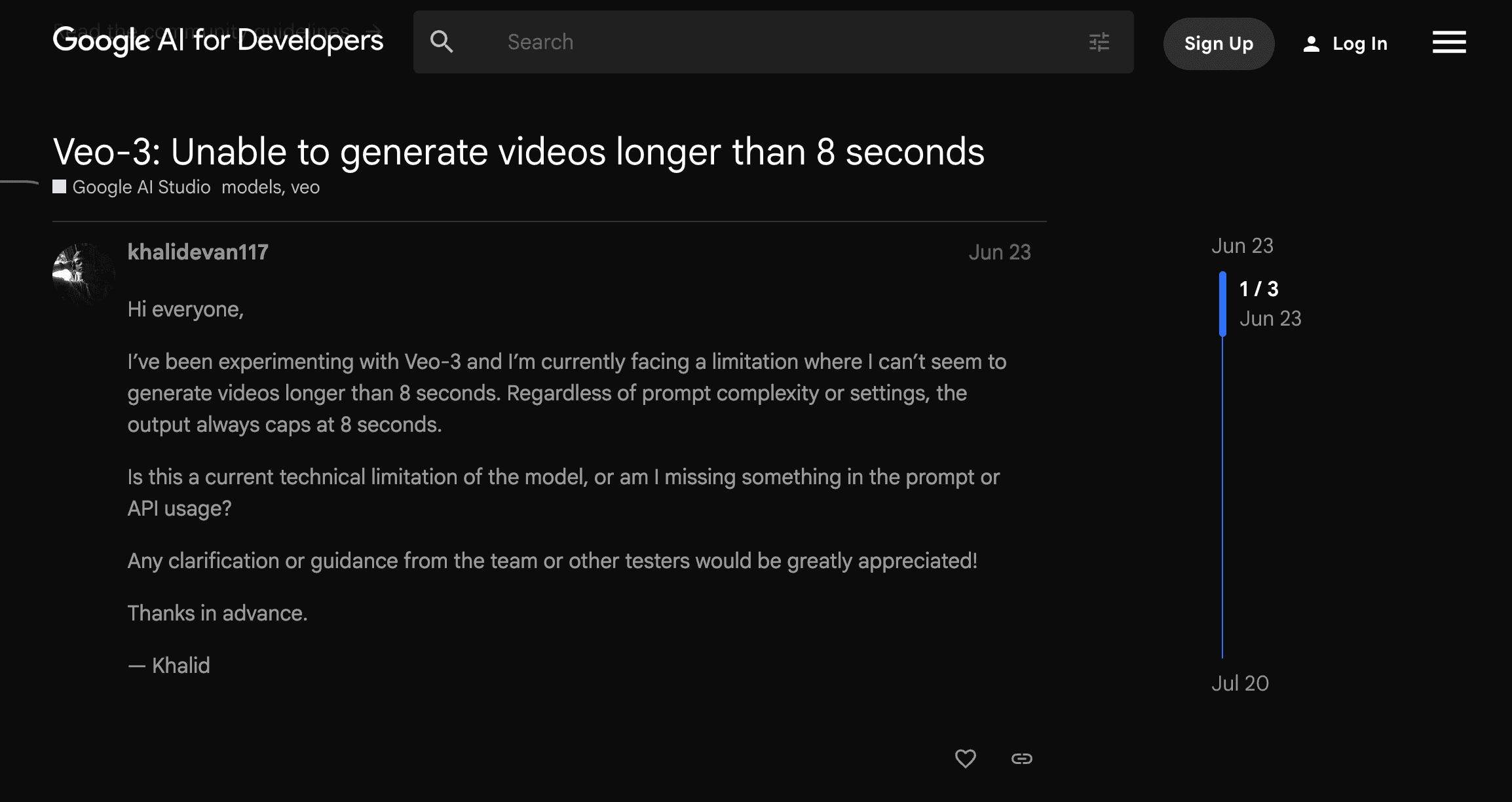
If you have been using Veo 3.1 in Google Flow, you have probably noticed that each clip stops at 8 seconds. That limit feels short when you are trying to tell a full story or build a detailed scene.
In this guide, we will cover how long Google Flow videos can be, then walk through the Extend workflow step by step, with prompt tips that help each new segment flow naturally from the last one.
Let's begin!
How Long Can Google Flow Videos Be?
Video length in Flow depends on two things: the length of a single generation and how many times you extend it.
| What you are making | Length in Google Flow |
|---|---|
| One clip with Veo 3.1 (Lite, Fast or Quality) | 4, 6 or 8 seconds |
| One clip with Gemini Omni Flash | 4, 6, 8 or 10 seconds |
| An extended video | Chained segments, "a minute or more" according to Google |
A few rules matter here:
- Only 8-second Veo 3.1 clips can be extended. If you generate a 4 or 6 second clip, you will not get the Extend option.
- Extensions use Veo 3.1 Lite. Each new segment is generated from the final second of the previous one, which keeps motion and framing continuous.
- Extend is not available for Gemini Omni Flash yet. Google lists it as coming soon.
- There is no published hard cap in Flow. Google describes extended videos as lasting a minute or more. For comparison, developers using Veo 3.1 through the Gemini API can extend a video up to 20 times, for a maximum of 148 seconds.
So yes, Google Flow can make videos longer than 8 or 10 seconds. You just build them from extended segments instead of a single generation.
How to Make Longer Videos in Google Flow
Follow these steps to create videos longer than 8 seconds with the Extend feature in Google Flow.
This process chains multiple segments together while keeping smooth motion, consistent visuals, and natural scene transitions.
Step 1: Open Google Flow and Generate an 8-Second Clip
Log in to Google Flow with your Google account and start a new project. Choose a Veo 3.1 model and set the clip length to 8 seconds, since only 8-second Veo 3.1 clips can be extended.
Write a descriptive prompt that outlines your opening scene, including setting, characters, lighting, and motion details.
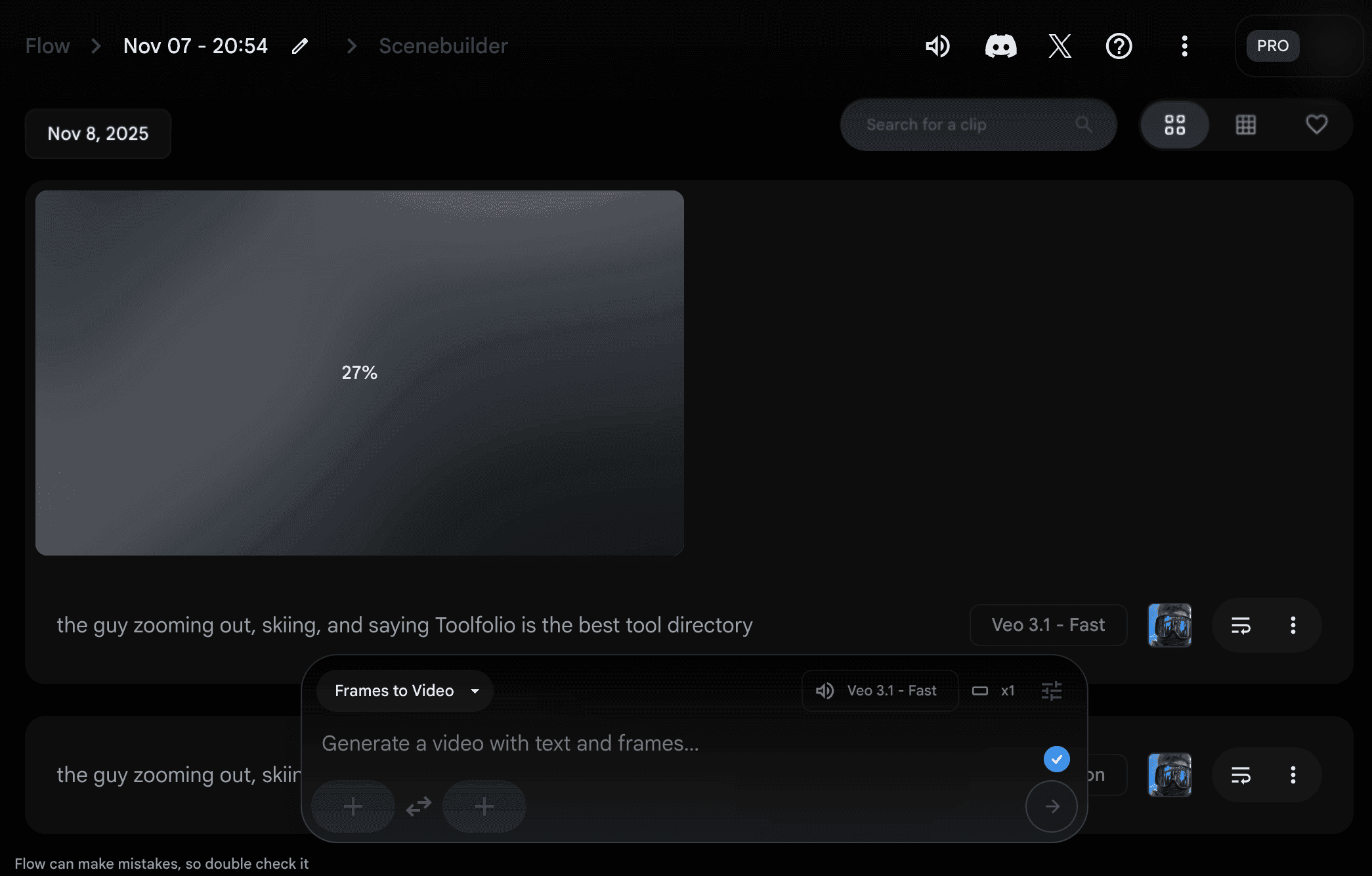
Generate your first video. It will last 8 seconds.
First Generated Video (8 Seconds Clip)
Review it and make sure the look and motion match your creative direction before you extend it.
Step 2: Open the Clip and Select Extend
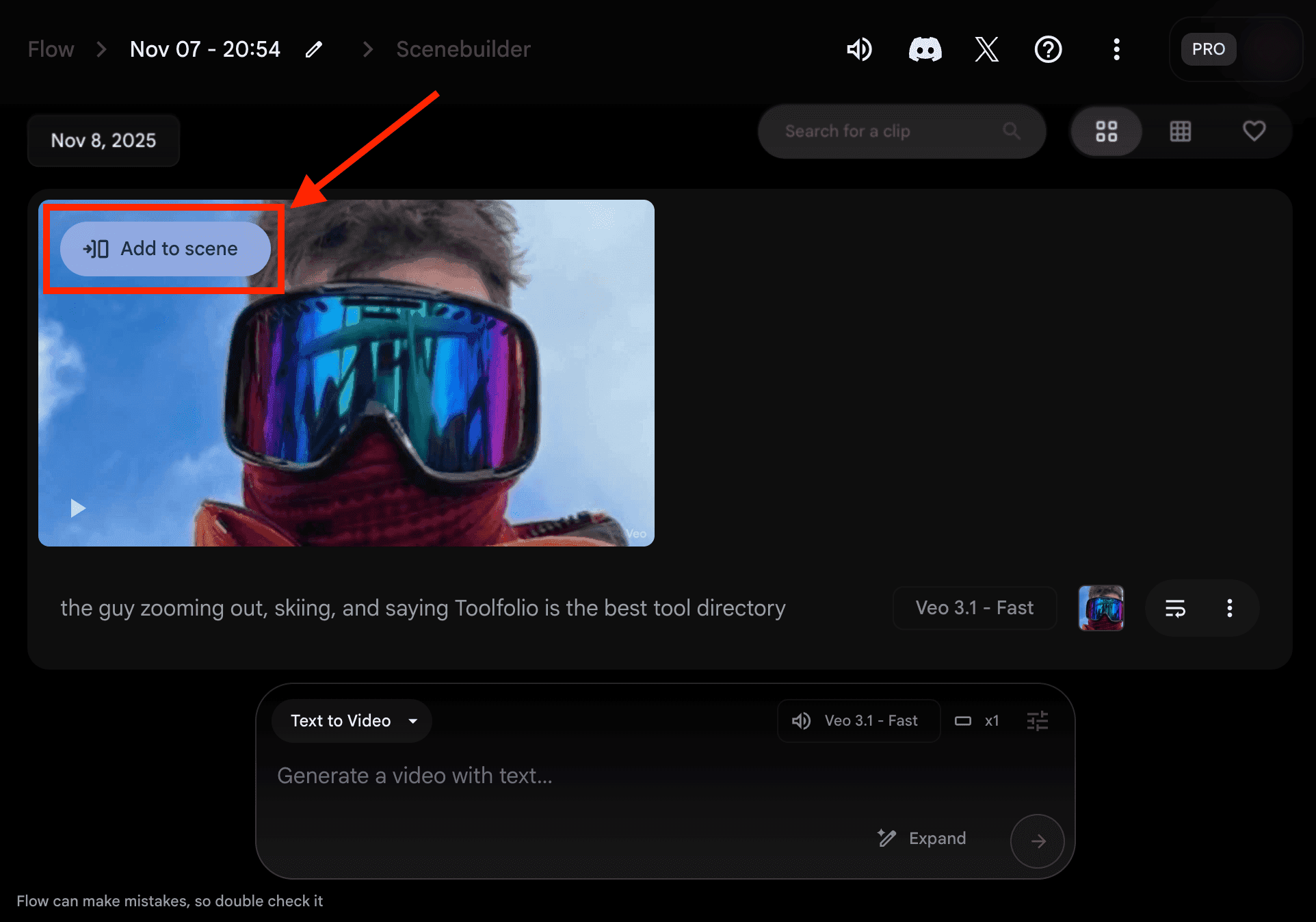
Click the clip to open it, then click Extend at the bottom of the player.
Earlier versions of Flow placed Extend inside Scenebuilder. Since March 2026 it sits on the clip itself, so your screen may look slightly different from the screenshots in this guide.
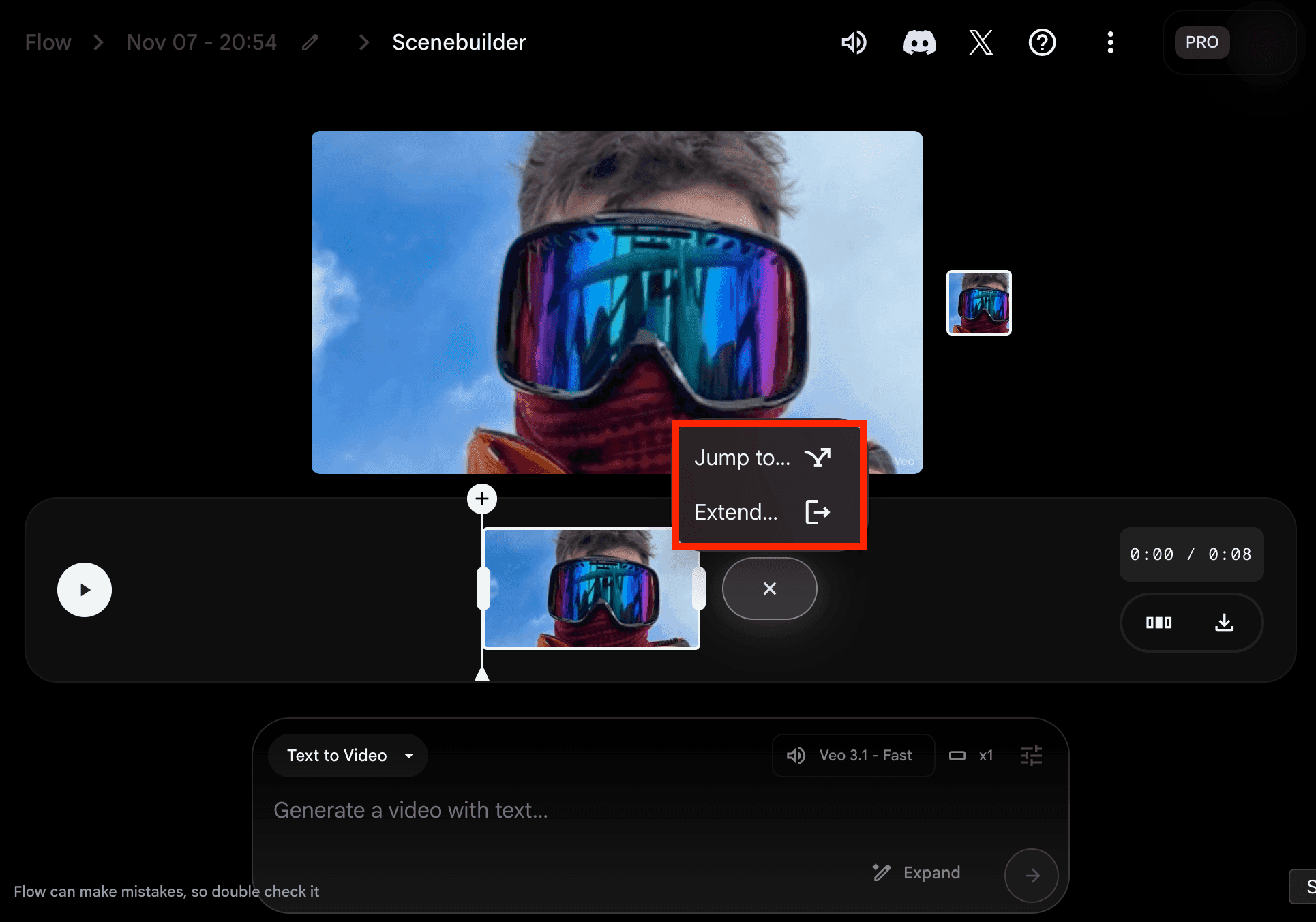
This tells Flow to generate a continuation that picks up from the last second of the current clip.
Step 3: Describe What Happens Next
In the prompt box, write a short description of what happens next. Describe the next action, camera movement, or emotional shift.
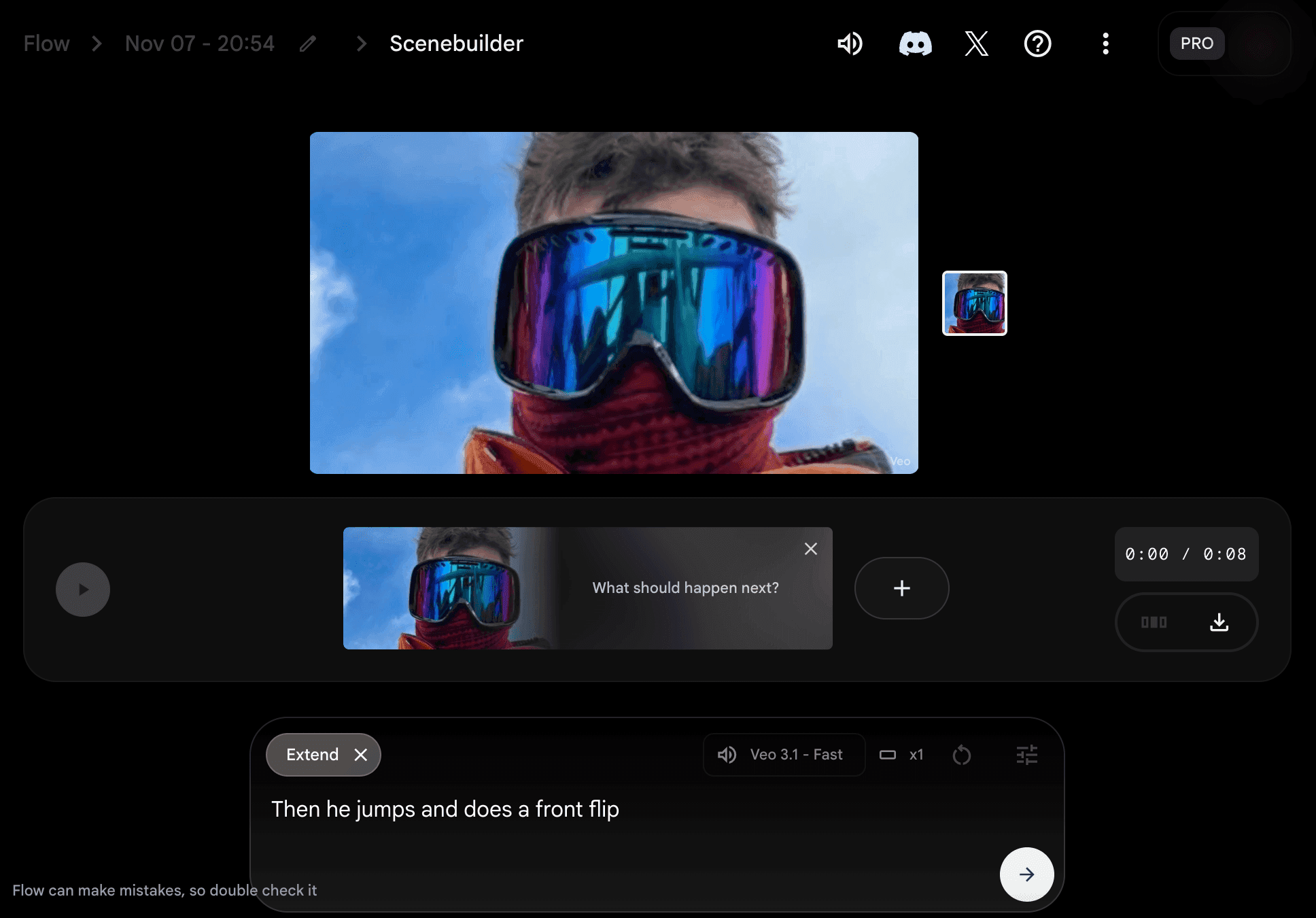
Keep the prompt focused on the next few seconds. One clear action per extension usually gives smoother results than packing several events into one prompt.
Step 4: Generate the Next Segment
Click Generate. Flow creates a new segment that continues from where the previous clip ended.
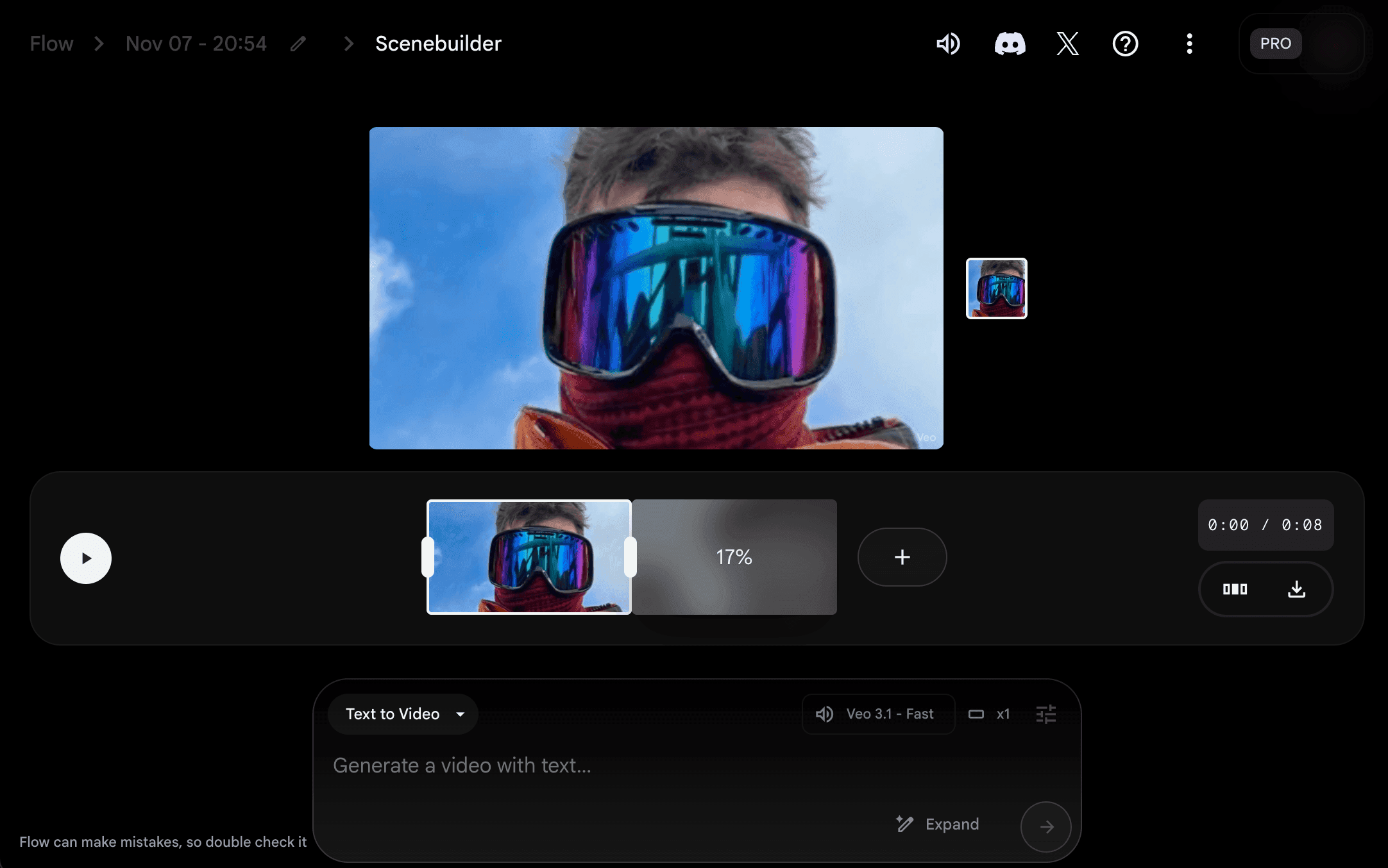
The extended video appears in your project, directly following your first segment.
Step 5: Repeat the Process for Longer Videos
Repeat Steps 2 to 4 for every additional segment you want. Each extension adds another continuous section of motion.
By chaining segments, you can build scenes that last 30 seconds, a minute, or more, depending on your project. Keep in mind that extended clips cannot be changed with Flow's insert, remove or camera edits.
Step 6: Arrange and Download
Use Scenebuilder to arrange, trim and preview your clips as one sequence.
When ready, download the video to your device.
Extended Video (17 Seconds)
For finer control like adding music, sound effects, or titles, export the clips to an external editor such as CapCut or Canva. For more options, see these CapCut alternatives for every creator.
Tips for Smoother Extensions
- Repeat key details. Mention the same character, outfit, and setting in each extension prompt so the look stays consistent.
- Plan the story in 8-second beats. Decide what happens in each segment before you start extending.
- Describe camera continuity. If the first clip ends on a slow push-in, ask the next segment to continue that move instead of cutting to a new angle.
- Check each segment before extending again. It is easier to regenerate one weak segment than to fix a long chain later.
FAQ
Can Google Flow make long videos?
Yes. Each generation is short (up to 8 seconds with Veo 3.1), but the Extend feature adds new segments that continue the motion, so you can build videos lasting a minute or more.
What is the maximum video length in Google Flow?
A single Veo 3.1 generation is up to 8 seconds, and a Gemini Omni Flash generation is up to 10 seconds. Google does not publish a hard limit for extended videos in Flow; it describes them as lasting a minute or more.
Can Google Flow create videos longer than 10 seconds?
Yes, by extending an 8-second Veo 3.1 clip. Each extension continues from the final second of the previous segment, so the total length grows with every extension.
Why can't I extend my video in Google Flow?
Extend only works on 8-second clips made with Veo 3.1. Clips that are 4 or 6 seconds long, or made with Gemini Omni Flash, cannot be extended right now.
Is Veo 3 limited to 8 seconds?
Each Veo generation in Flow is limited to 8 seconds. Longer videos are made by extending a clip, not by generating one long clip in a single pass.
Wrapping Up: Making Longer Videos in Google Flow
Creating longer videos in Google Flow is all about using the Extend feature smartly.
By chaining 8-second Veo 3.1 segments, you can tell fuller stories, create cinematic transitions, and keep visual continuity, all inside Flow. This approach gives you flexibility without needing complex editing or external tools right away.
With practice, you will get better at writing precise prompts that guide each extension to a smoother continuation and a stronger narrative. Once you have mastered this, you can explore sound design, lighting control, and editing refinements to take your AI-generated videos even further.