
Quick answer: To download part of a YouTube video, paste the video link into an online YouTube cutter such as SliceTube, set the start and end timestamps, pick MP4 or MP3, and download only that section. If it is your own video, YouTube Studio lets you download an MP4 copy and create clips without any third-party tool.
Most of the time you do not need the whole video. You need one answer from a podcast, a two-minute segment of a lecture, a highlight from a stream, or a reference shot for a project. Downloading a 40-minute file just to cut it down later wastes time and storage.
This guide covers the methods that work in October 2026: trimming with an online cutter, trimming your own uploads in YouTube Studio, sharing a moment with a timestamp, and trimming a downloaded file in a video editor. It also explains what YouTube's terms allow, so you know when downloading is fine and when it is not.
Method 1: Download Part of a YouTube Video With SliceTube
SliceTube is a browser-based YouTube cutter. You paste a link, choose a start and end time, and download only that part as MP4, MP3 or WebM. It does not need an account to start, does not add a watermark, and works in a phone browser too. The free version has quality limits; higher resolutions (up to 4K for supported videos) come with SliceTube Pro.
Step 1: Paste the YouTube link into SliceTube
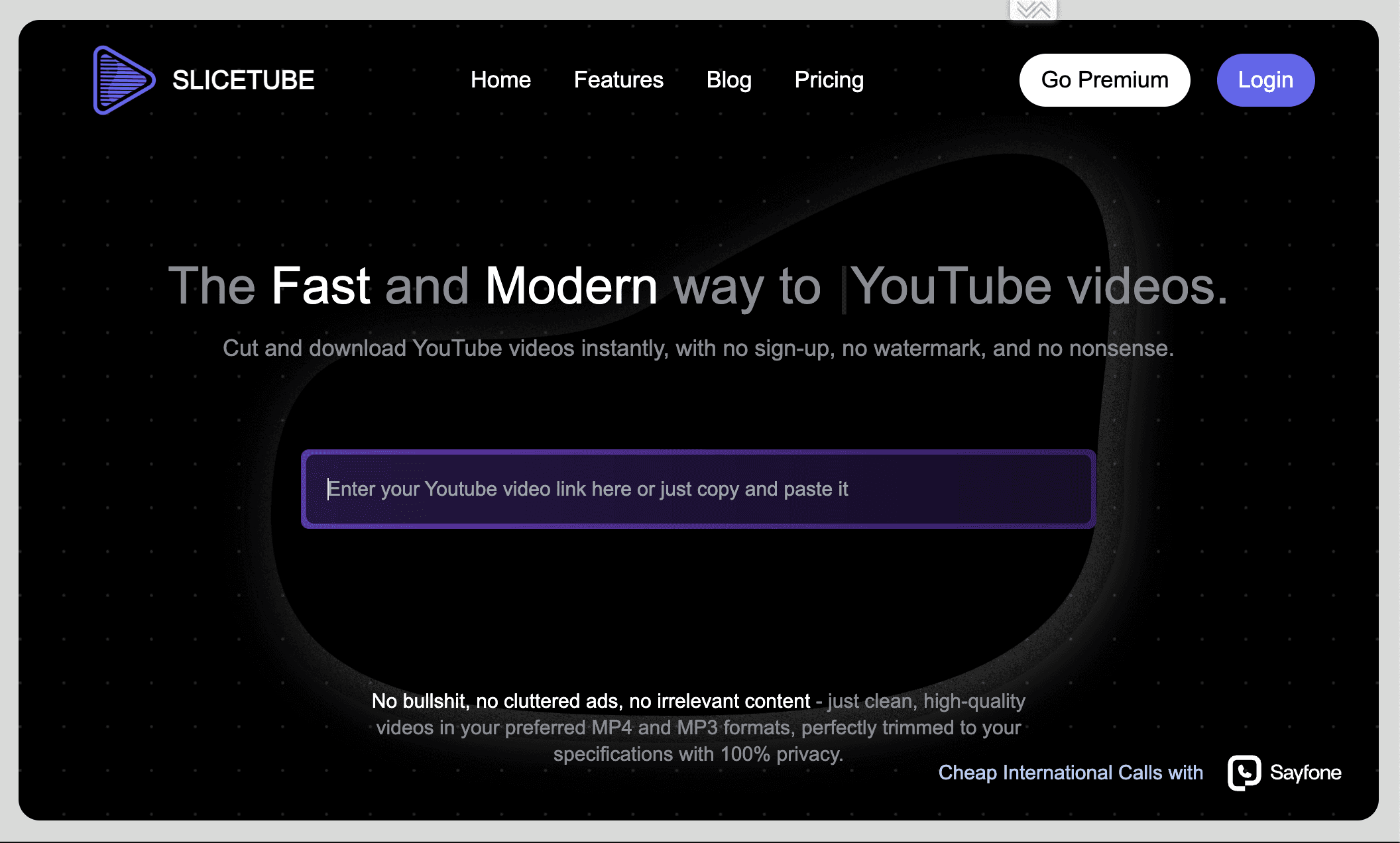
Open SliceTube in your browser. Copy the URL of the YouTube video from the address bar or the Share button, then paste it into the input field on the homepage.
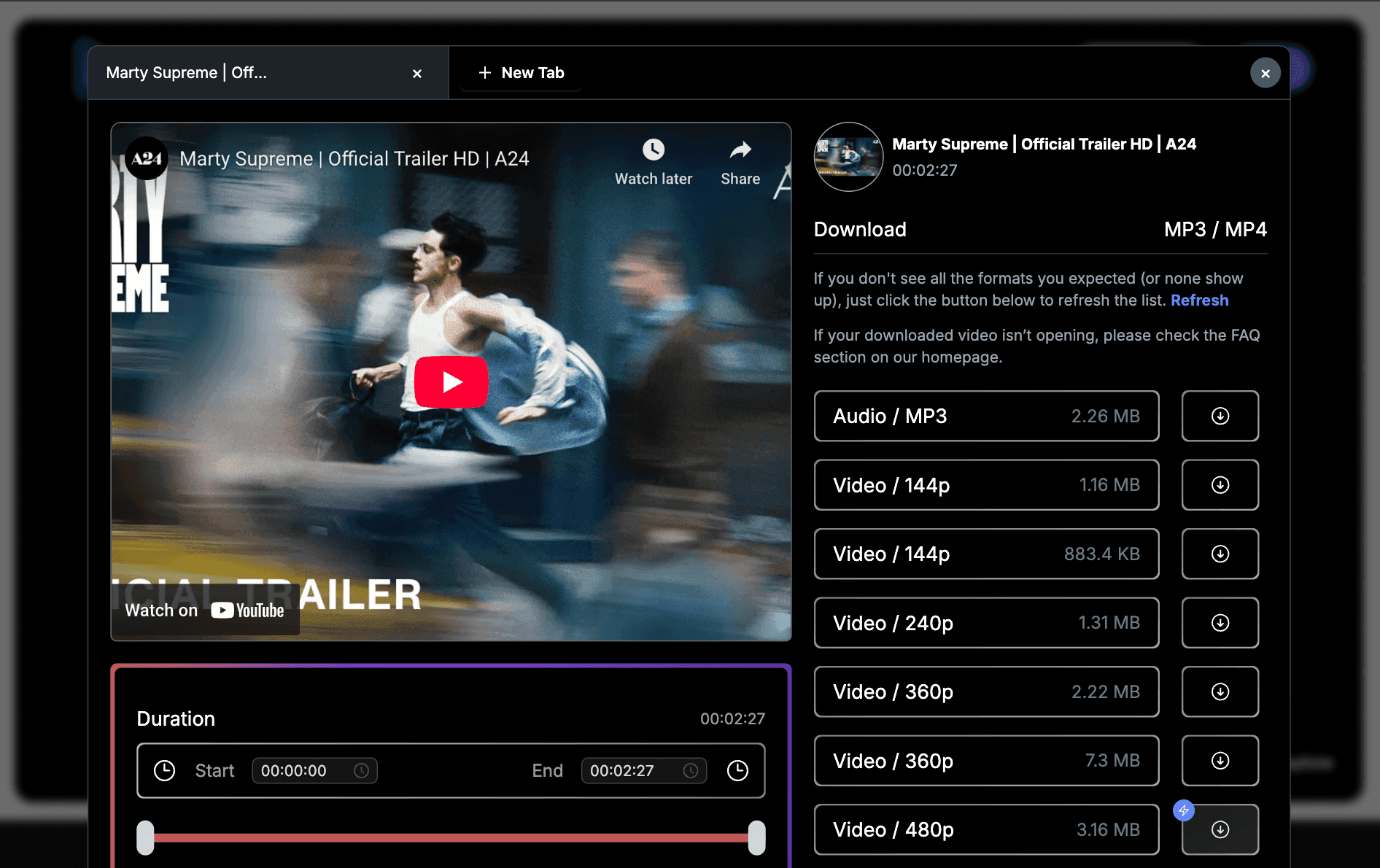
SliceTube loads a preview of the video so you can choose the section you want.
Step 2: Set the start and end time of the part you need
Drag the timeline handles to the section you want, or type exact timestamps into the Start and End fields (hours:minutes:seconds). Typing is the fastest way to grab a specific minute, for example 00:12:30 to 00:14:05.
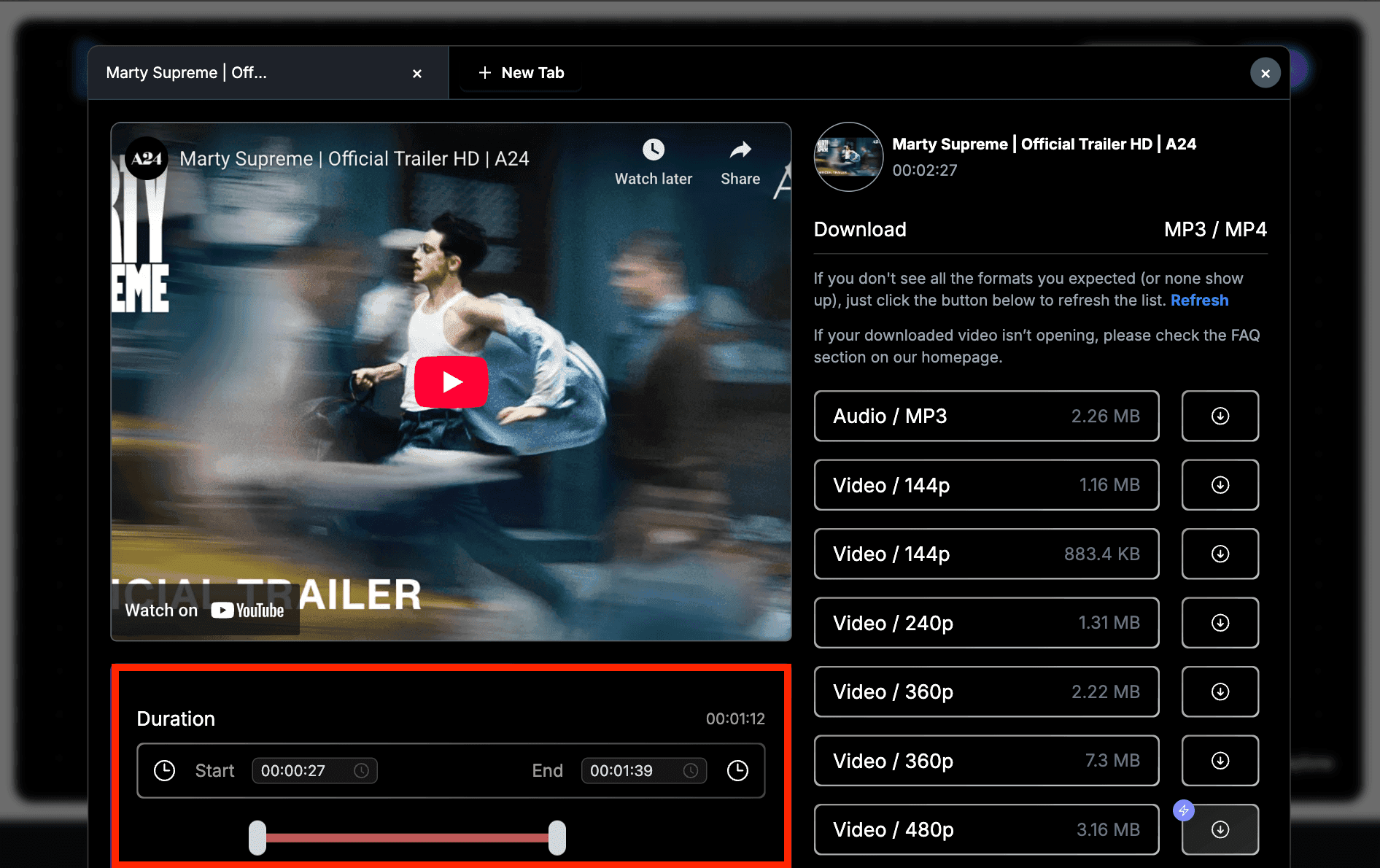
Preview the selection and nudge the markers until the clip starts and ends exactly where you want. If you need several moments from one long video, repeat this step for each section.
Step 3: Choose the format and quality
Pick MP4 for a normal video file, WebM if your workflow needs it, or MP3 if you only want the audio from that section, such as a podcast answer or a song snippet.
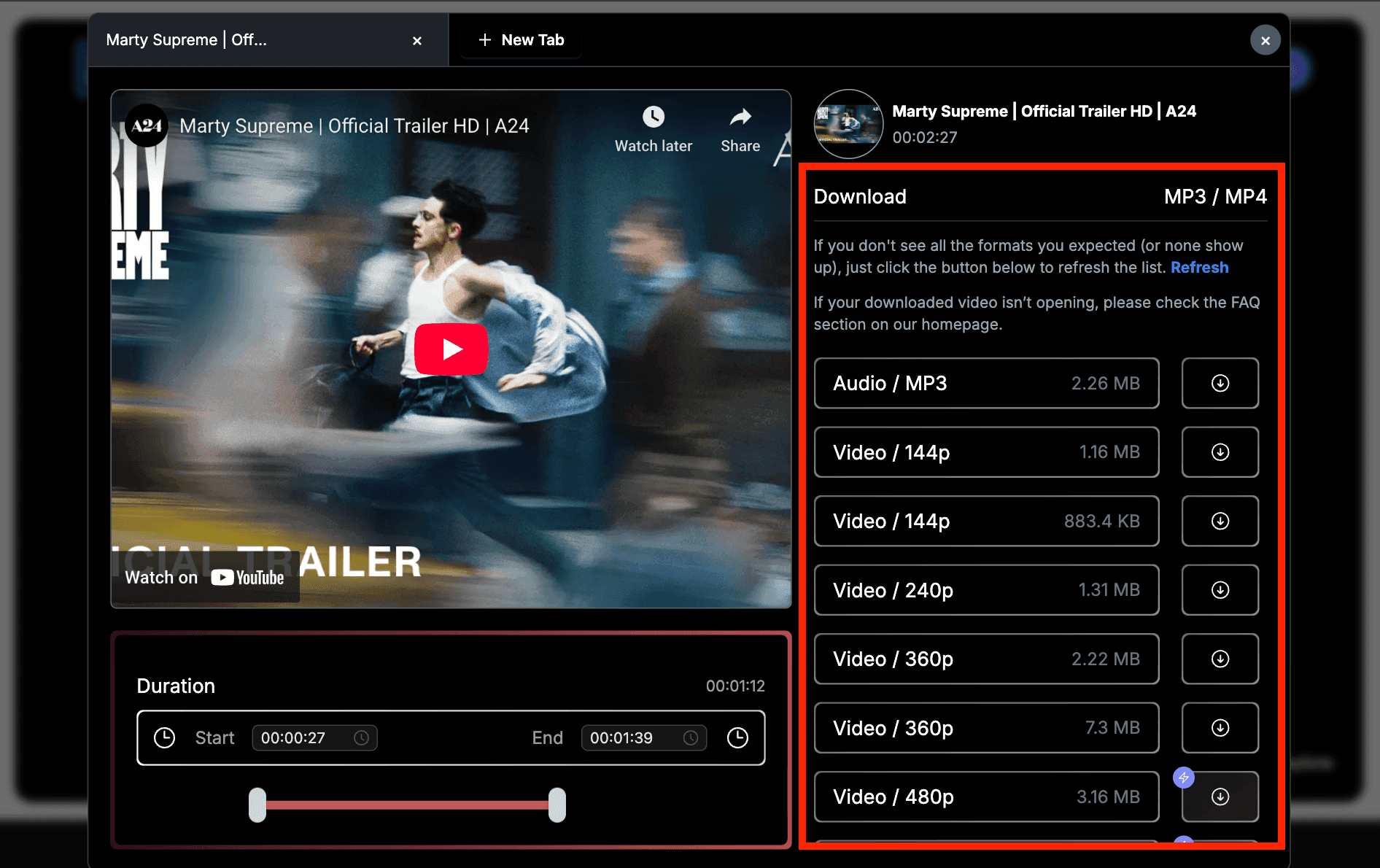
Then choose a resolution. Available options depend on the original video and your plan, from small low-resolution files up to 1080p or 4K.
Step 4: Cut the clip and download it
Start the cut. SliceTube processes only the section you selected, so you do not have to download the full video first.
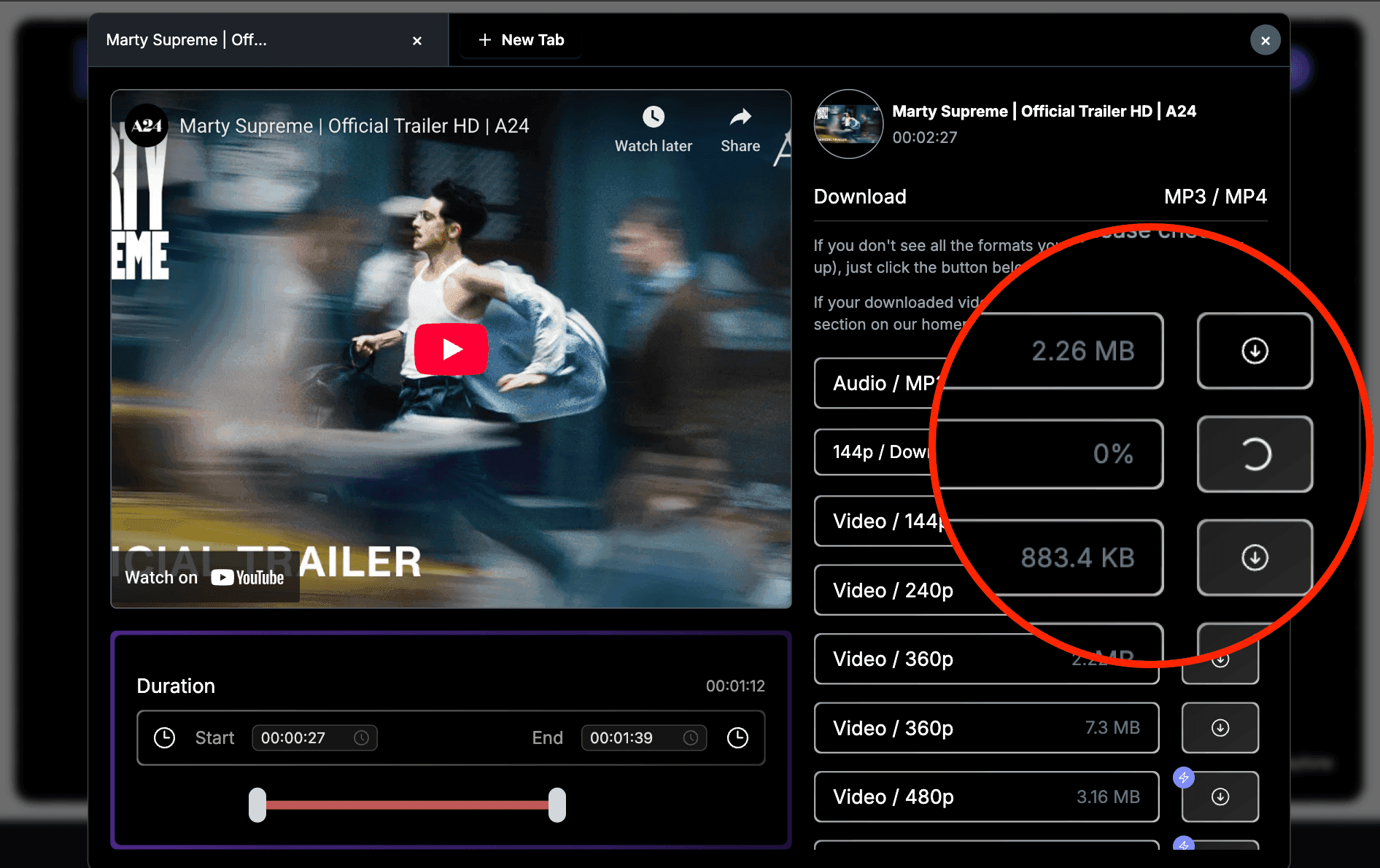
When processing finishes, click Download to save the file to your device. The clip is ready to watch offline, drop into an editor, or use as a reference.
Method 2: Trim and Download Your Own Video in YouTube Studio
If you uploaded the video yourself, YouTube Studio already has what you need, and it is the safest option because you own the content. There are three tools, and they do different things.
Download an MP4 copy (keeps the original untouched). In YouTube Studio, go to Content, open the menu next to the video and select Download. YouTube gives you an MP4 file in 720p or 360p. You can download an individual video up to five times in 24 hours. Then trim the file in an editor (see Method 4).
Create a new clip with Video Clips. Open the video in Studio, select Clips, then Create video clip. Pick the segment by selecting text in the transcript or by entering start and end timestamps, then save it. The clip is published as a new video on your channel, with its own title and thumbnail.
Trim the published video with the Editor. Open the video, select Editor, then Trim & cut. Drag the blue box over the part you want to keep and click Save. This changes the original video, but its URL, views and comments stay the same. It works for videos shorter than six hours. Be careful: saved edits can no longer be reverted to the original, and channels outside the YouTube Partner Program may not be able to save edits on videos with more than 100,000 views.
Method 3: Share a Specific Moment Instead of Downloading
If you only want to show someone a moment, you may not need a file at all.
YouTube retired the viewer Clips feature in April 2026. Clips you already made still play, but you can no longer create new ones with an end time. Its replacement is share at timestamp: pause at the moment you want, open Share, and turn on the start time option (a checkbox on desktop, a toggle in the top-right of the share sheet on phones).
The link opens the full video at that moment. It does not stop at an end point, and it does not create a downloadable file.
Method 4: Trim a Downloaded Video in an Editor
When you already have the full file, for example your own upload from Studio, a Creative Commons video, or footage you have permission to use, any video editor can cut out the part you need.
- Clipchamp: an online video editor that also runs on Windows and Mac.
- CapCut: an all-in-one editor for web, Windows, iOS and Android.
- VEED: an online video editor that runs in the browser.
If you are a creator turning your own long videos into Shorts, Reels or TikToks, Klap is built for that: it turns YouTube videos into short vertical clips.
To get the full file from other platforms in the first place, see our guide on how to download videos from any social media for free. For more editing options, see these CapCut alternatives for every creator.
Which Method Should You Use?
| Your situation | Best method | What you get |
|---|---|---|
| You need one section of a video as a file | SliceTube (Method 1) | MP4, MP3 or WebM of only that part |
| It is your own video and you want a file | YouTube Studio download, then trim (Methods 2 and 4) | MP4 in 720p or 360p |
| It is your own video and you want a new short video | YouTube Studio Video Clips (Method 2) | A new video on your channel |
| You just want to show someone a moment | Share at timestamp (Method 3) | A link that starts at that moment |
| You already have the full file | A video editor (Method 4) | A trimmed export in any format |
Is It Legal to Download Part of a YouTube Video?
It depends on whose video it is and what you do with it. YouTube's Terms of Service say you may not download Content "except: (a) as expressly authorized by the Service; or (b) with prior written permission from YouTube and, if applicable, the respective rights holders."
In practice:
- Your own videos are fine. YouTube Studio offers the download for exactly this reason.
- YouTube Premium lets you save videos for offline viewing inside the YouTube app. Those downloads are not files you can edit or move.
- Other people's videos need the rights holder's permission (or a license such as Creative Commons that allows reuse). Copyright rules like fair use vary by country, so check before you publish anything you cut from someone else's video.
Third-party cutters like SliceTube are tools; what matters is that you have the right to use the footage. This is general information, not legal advice.
FAQ
How do I download only a specific part of a YouTube video?
Paste the video link into an online cutter such as SliceTube, enter the start and end time of the section, choose MP4 or MP3, and download. Only the selected portion is processed, so you do not have to download the full video and cut it later.
Can I download a YouTube video from a specific minute?
Yes. In SliceTube, type the exact start and end timestamps, for example 00:12:30 to 00:14:05, instead of dragging the slider. That saves only the fragment between those two times.
Is there a free way to download part of a YouTube video?
SliceTube offers free cutting and downloading with quality limits. Higher resolutions such as 1080p and 4K, depending on the video, require SliceTube Pro. For your own videos, YouTube Studio's MP4 download is free.
Can I still make a YouTube Clip and download it?
No. YouTube stopped letting viewers create new Clips in April 2026 and replaced the feature with share at timestamp. Clips were also never downloadable files; they were links that looped a section of the original video.
How do I download a trimmed video from YouTube Studio?
Open Content in YouTube Studio, open the menu next to the video and select Download. Studio exports an MP4 in 720p or 360p. To get only a section, trim that file in an editor such as Clipchamp or CapCut, or use Clips > Create video clip to publish the section as a new video.
Can I save just the audio from part of a YouTube video?
Yes. Select the section in SliceTube and choose MP3 as the format. This works well for podcast answers, interviews and lectures, as long as you have the right to use the audio.
Does this work on iPhone and Android?
Yes. SliceTube runs in a mobile browser, so you can paste a link and download a clip without installing an app. For your own uploads, use YouTube Studio on a computer to download the MP4.
Wrapping Up
To download part of a YouTube video, use a cutter like SliceTube for any video you have the right to save, or YouTube Studio for your own uploads. If you only need to point someone to a moment, share at timestamp is quicker than downloading anything.