

I’ve been playing around with a lot of AI design tools lately. I really wanted to see if I could take an idea from my head and turn it into something visual without having to start from a blank screen in Figma every single time.
For months, I tried everything. Figma plugins, Uizard, Framer AI, and those new tools that promise to build an entire app from one prompt. However the designs either looked pretty but were totally useless, or they were editable but required so much cleanup that I might as well have started from scratch.
Then I gave UX Pilot a shot.
After comparing it to the other tools I’ve used, I’ve found its sweet spot. It might not be the absolute fastest for generating flashy visuals, but it’s much more structured. It makes it easier to actually finish a project rather than just playing with prompts.
In this review, I’m going to break down how it actually works, what’s great about it, what’s still missing, and whether it’s actually worth adding to your toolkit.
What Is UX Pilot?
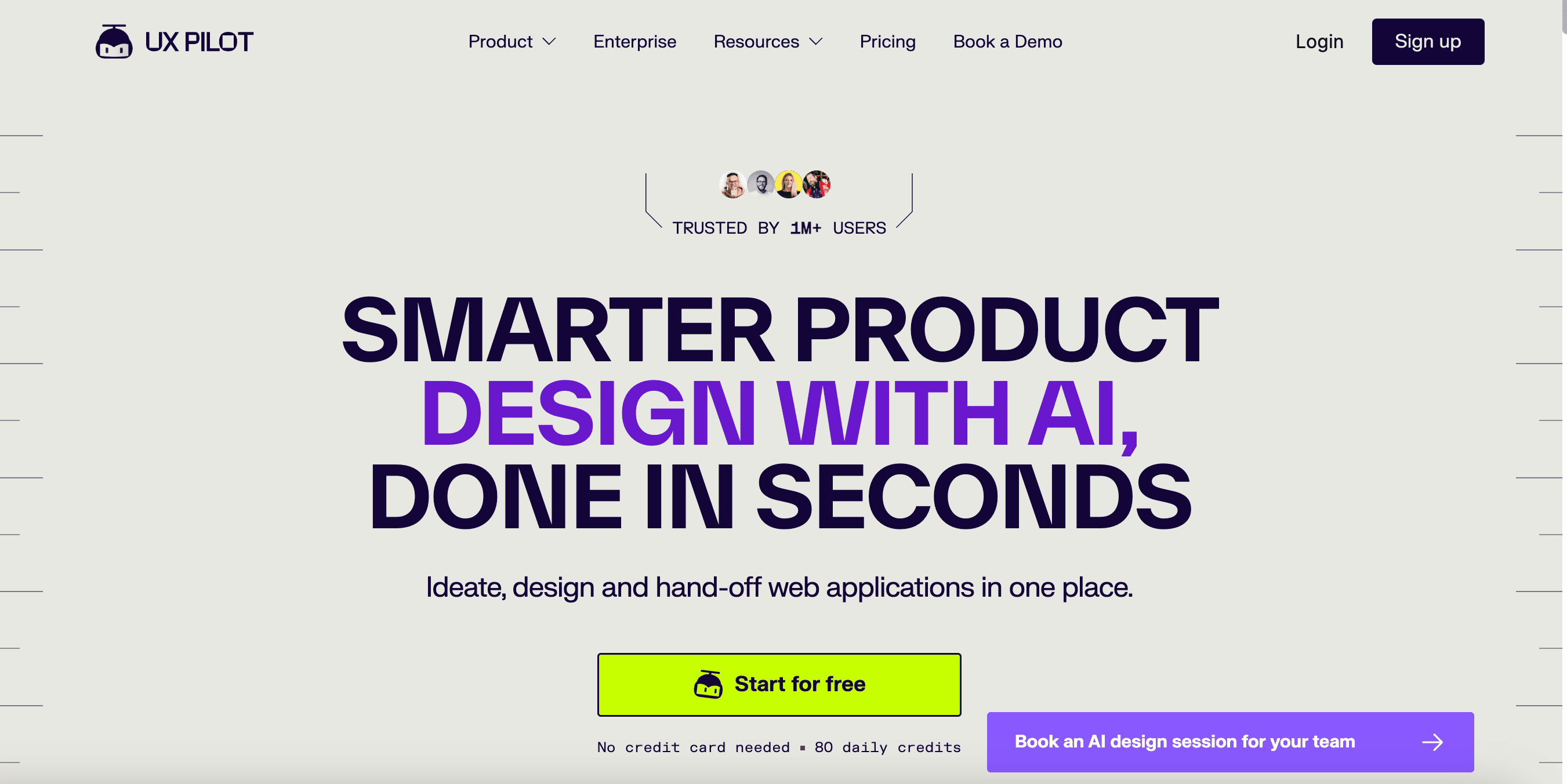
UX Pilot is an AI-powered UX and UI design tool that helps you turn product ideas into visual designs.
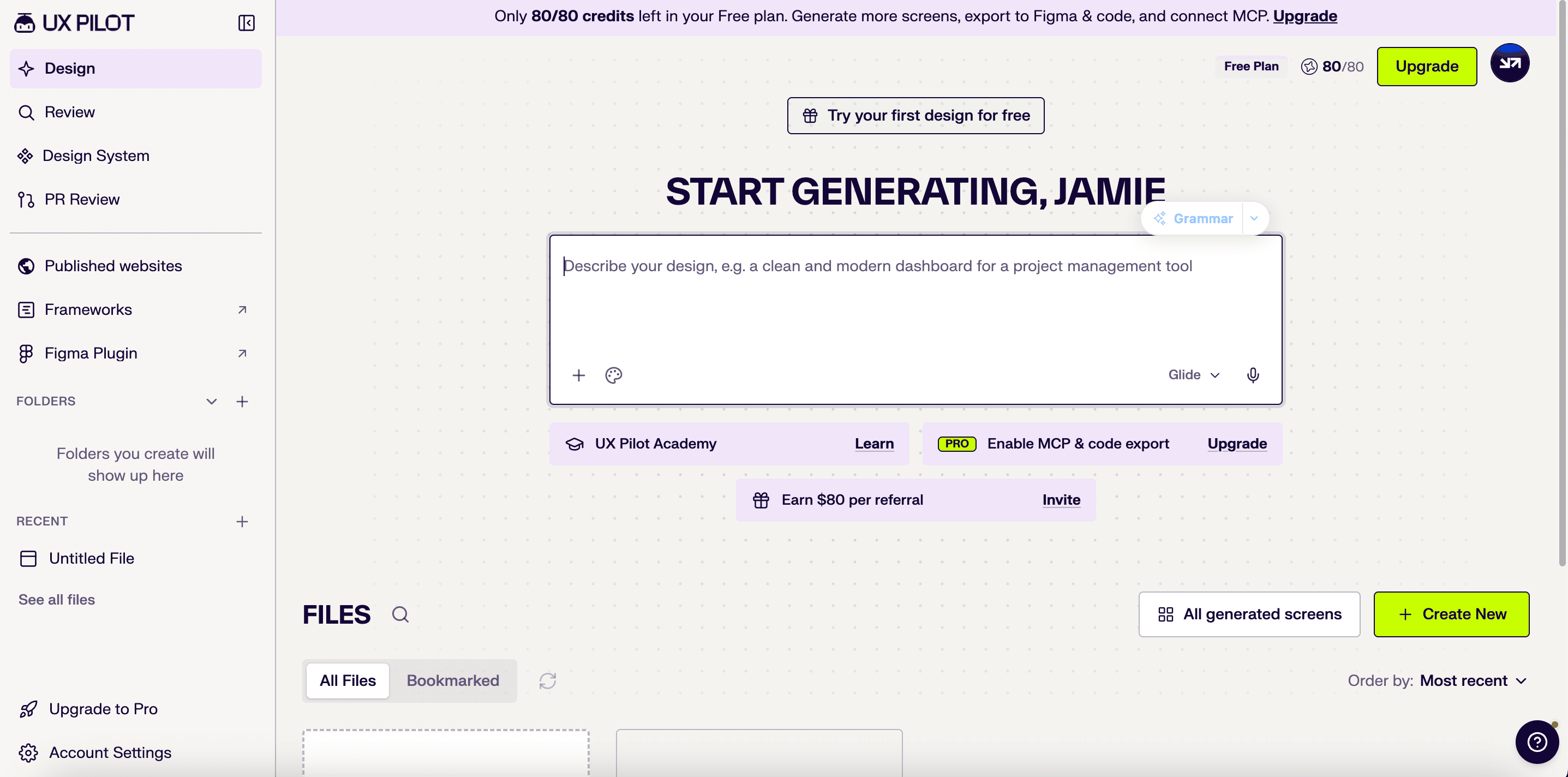
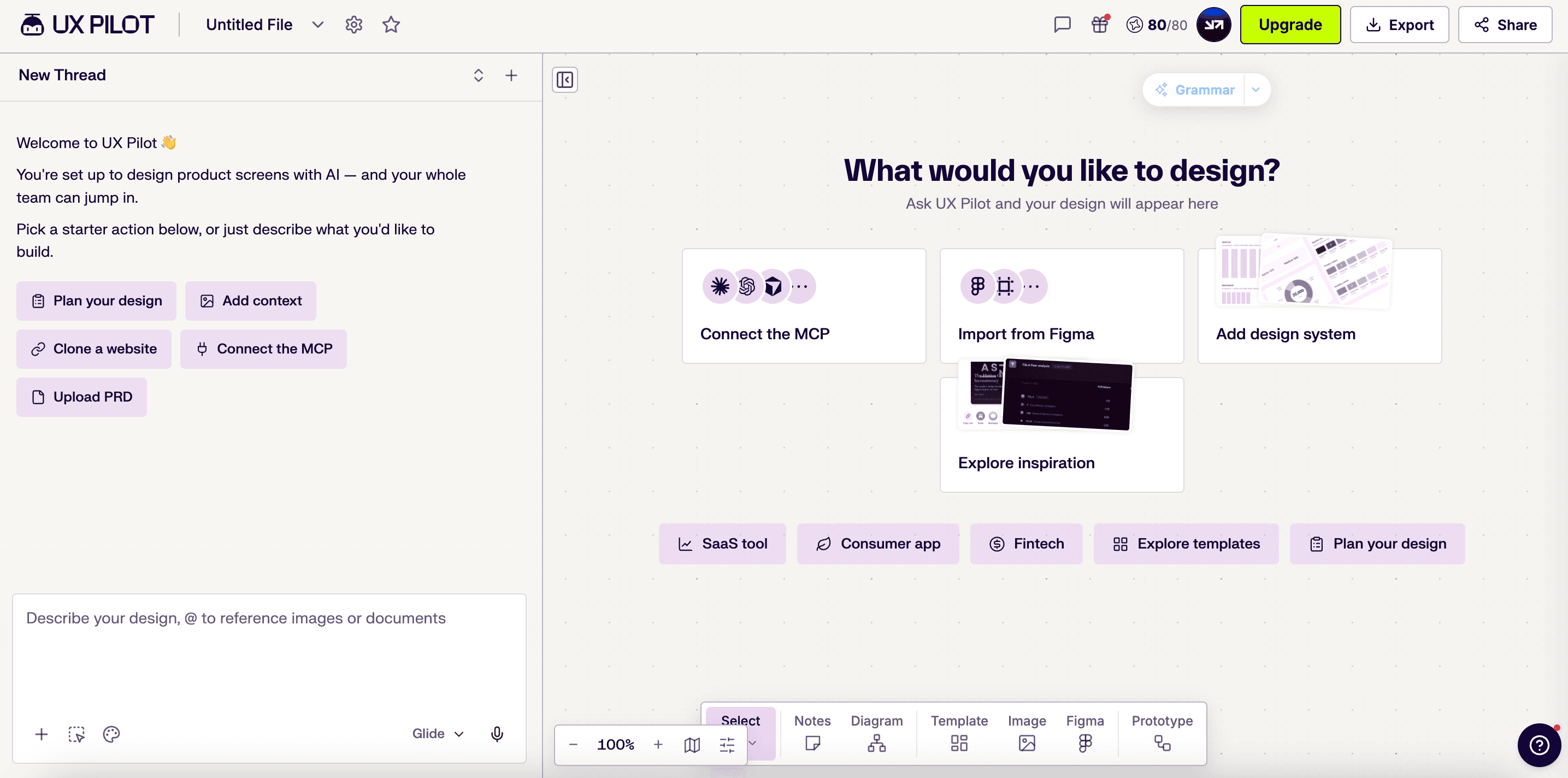
So you start with a simple prompt, a sketch, or a product requirements document (PRD), and UX Pilot can generate wireframes and UI screens from it. You can then refine the designs, turn wireframes into high-fidelity screens, build prototypes, and export your work to Figma or code.
The main idea is to make the early part of product design much faster.
Instead of opening Figma with a blank canvas and building every screen yourself, you can describe what you want and get a starting point in seconds. UX Pilot can also generate full user flows, flowcharts, landing pages, dashboards, and other common product screens.
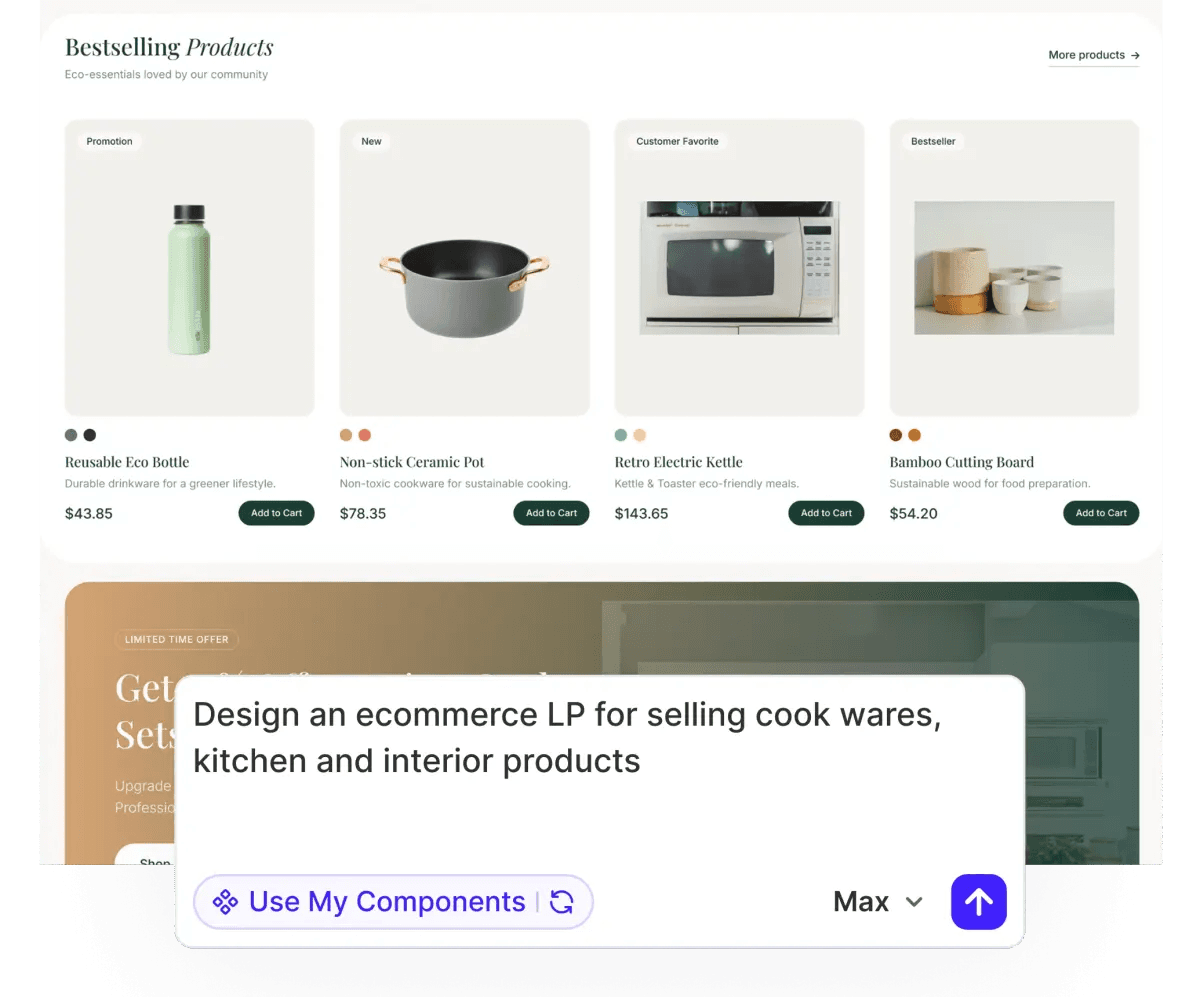
UX Pilot is not only a screen generator. It tries to cover more of the design process in one place.
You can import Figma components and use existing design systems to keep your screens consistent. You can also move designs between UX Pilot and Figma, and export HTML/CSS or sync code with GitHub when you are ready to build.
Pros and Cons of UX Pilot
UX Pilot does a lot well, especially if your main goal is to get from an idea to a usable design quickly.
Its strongest features are the speed of generation, editable designs, Figma workflow, and the number of design tasks it can handle in one place.
But it is not perfect. Credit usage can become expensive, and you may still need to fix consistency, exports, and some UX details yourself.
Here is a closer look at what UX Pilot gets right and where it falls short:
The Good (Pros)
Fast design generation: UX Pilot can turn a prompt into a structured wireframe or high-fidelity UI in a short time. This makes it useful when you want to explore an idea without spending hours building the first version manually.
Easy to edit: One of the better parts of UX Pilot is that manual edits do not use credits. You can change copy, icons, images, and other parts of the design without worrying about spending more credits each time. This makes it easier to refine a generated design instead of starting over.
Strong Figma workflow: UX Pilot works well with Figma through its plugin. You can bring AI-generated designs into your existing design work and continue editing them there. This makes it more useful for people who already use Figma instead of forcing them to leave their usual workflow.
Generous free plan: UX Pilot has a $0 plan that does not expire and does not require a credit card. It gives you 80 credits every day, with up to 13 screens per day. The credits do not roll over, but this is still enough for regular testing and light design work without paying for a subscription.
Useful for more than single screens: UX Pilot can handle wireframes, prototypes, user flows, notes, flowcharts, dashboards, landing pages, and other design tasks. You can also use design systems and existing Figma components to keep your work more consistent.
Built-in design checks: UX Pilot includes features such as predictive heatmaps and design reviews. These can help you spot problems with visual hierarchy and how users may interact with a screen before you move further into development.
The Bad (Cons)
- Credits can disappear quickly: AI generation uses credits, and a single screen can cost around 10 to 15 credits depending on the settings you use. If you are generating many screens or trying several versions, your credits can run out much faster than expected.
- Figma export has some friction: The Figma workflow is useful, but exporting designs from the web app requires the paid plugin.
- Some bugs and support issues remain: Users have reported problems such as incomplete wireframes, designs changing or disappearing, and slow support responses. These issues do not affect everyone, but they are worth considering if you plan to rely on UX Pilot for important projects.
UX Pilot Pricing
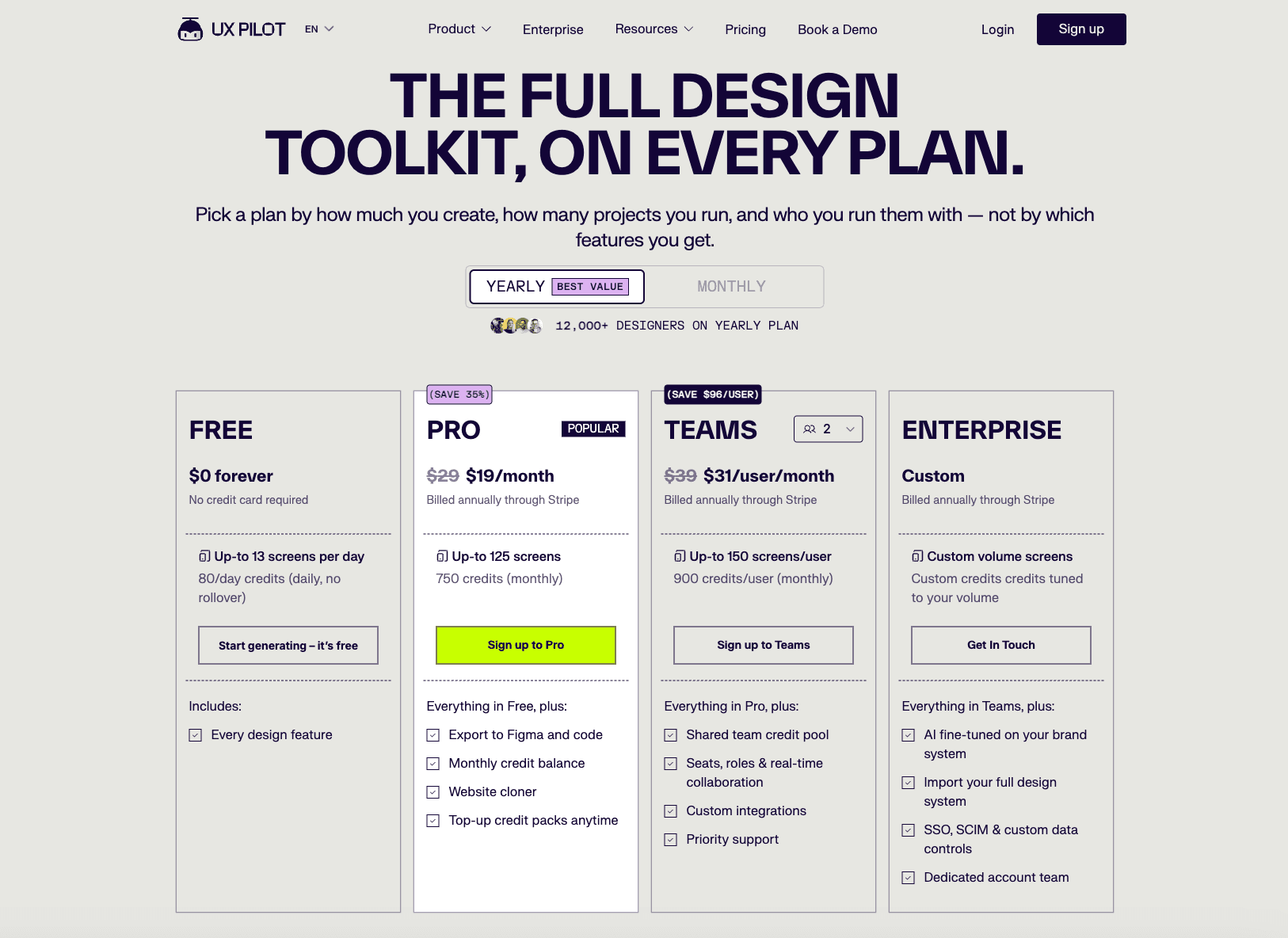
UX Pilot is one of the easier AI design tools to try because you do not need to pay to get started.
Its free plan costs $0 forever, does not require a credit card, and gives you 80 credits every day. You can generate up to 13 screens a day, and the plan includes access to the main design features, including Figma and code export.
The main catch is that free credits do not carry over. If you do not use your 80 credits today, they are gone when the daily limit resets.
For casual use, however, the free plan gives you plenty of room to test the tool before paying.
| Plan | Price | Credits | Screen limit | Best for |
|---|---|---|---|---|
| Free | $0 | 80/day | Up to 13/day | Trying UX Pilot and light use |
| Pro | $29/month | 750/month | Up to 125/month | Individual designers |
| Teams | $39/user/month | 900/user/month | Up to 150/user/month | Design teams |
| Enterprise | Custom | Custom | Custom | Large organizations |
Free
The Free plan gives you the core UX Pilot experience without a time limit. You get 80 credits every day and can generate up to 13 screens per day. You can also export your work to Figma and code. The daily credits do not roll over, but there is no subscription to manage.
Pro
At $29 per month, Pro is aimed at people who use UX Pilot as a regular part of their design work. You get 750 credits per month and can generate up to 125 screens. It also adds the website cloner and lets you buy extra credit packs when you need them.
Teams
Teams costs $39 per user each month. Each user gets 900 monthly credits and up to 150 screens. The important difference is the collaboration features. Teams can share credits, manage seats and roles, work together in real time, and use custom integrations. Priority support is also included.
Enterprise
Enterprise pricing is custom and is designed for companies with larger design teams or specific security and workflow needs. It includes custom credit and screen limits, AI fine-tuning for your brand system, full design system import, SSO, SCIM, custom data controls, and a dedicated account team.
For most users, the Free plan is the best place to start**.** It gives you enough daily credits to properly test UX Pilot rather than forcing you into a short trial. If you regularly create designs and need more credits, Pro is the natural upgrade.
Teams and Enterprise are mainly for organizations that need collaboration and administrative controls.
What Makes UX Pilot Different?
UX Pilot is not meant to work as a separate design tool that you have to move everything into and out of.
It is built to fit into the tools product teams already use.
You can connect it with Figma, work with AI tools through MCP, and connect the design process with tools used for planning and development.
This makes it easier to move from a product idea to a design without rebuilding the same information in different tools.
MCP and External Connections
One of the more useful additions in UX Pilot 2.0 is its support for MCP, or Model Context Protocol.
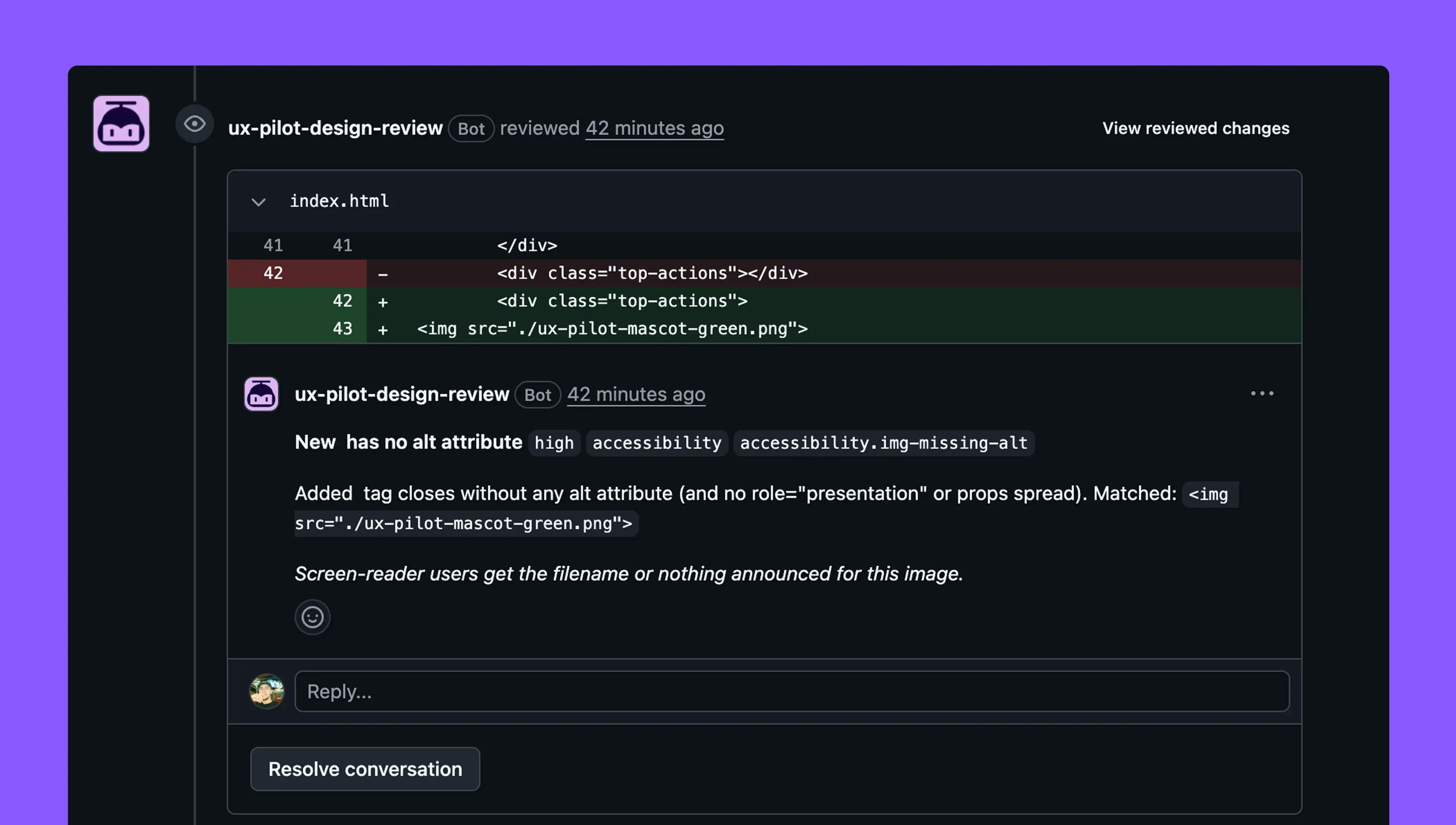
This lets UX Pilot connect with tools such as Claude Code and Codex, so you can work with UX Pilot from within an existing AI development workflow.
Instead of stopping to open a separate design tool, you can turn a feature idea into visual flows and screens as part of the same process.
UX Pilot is also designed to connect the design stage with the tools teams use to plan and manage products. This includes tools such as Notion and Linear, along with other external connectors.
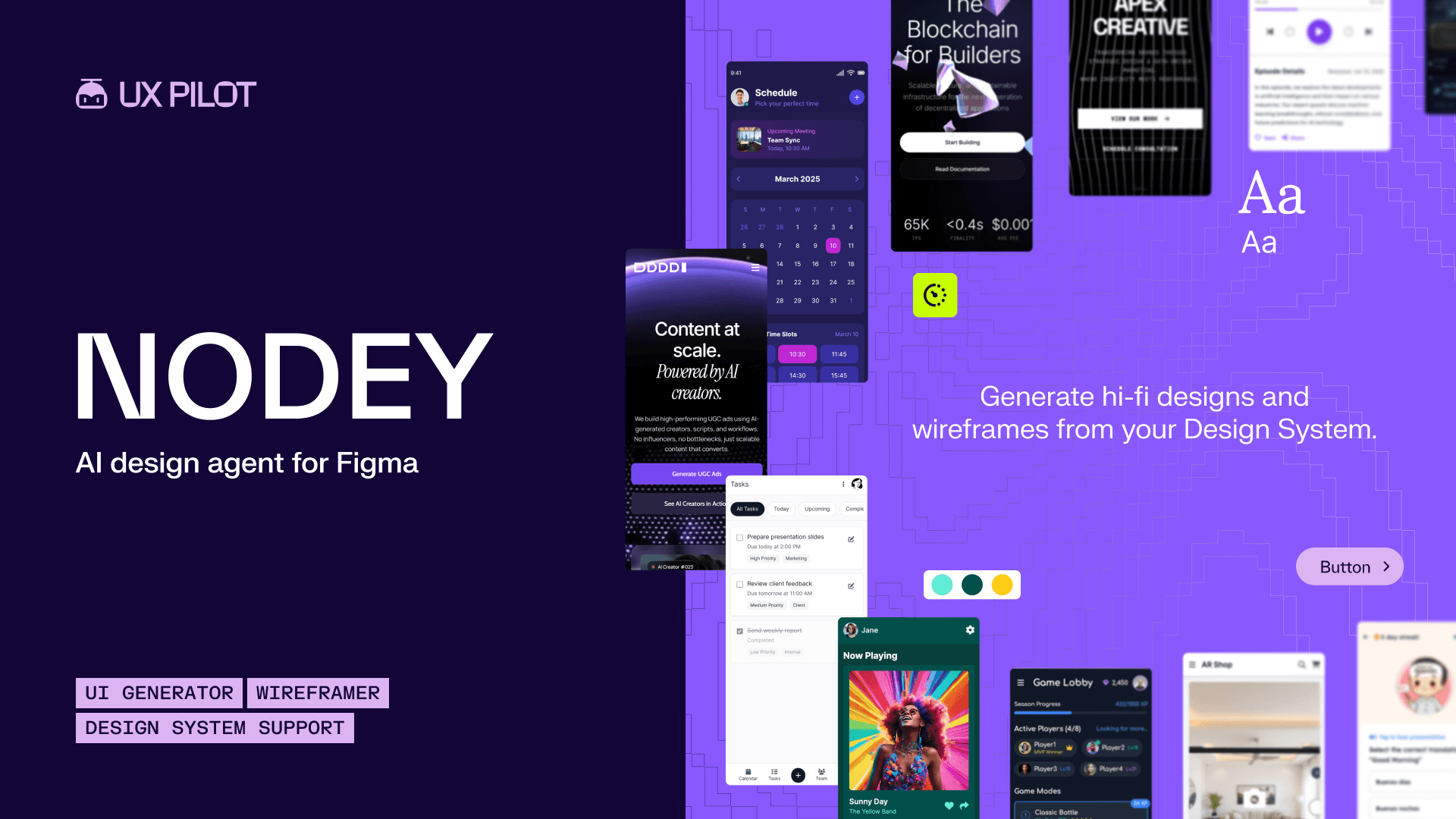
It also has a two-way connection with Figma. You can bring designs into Figma for further work, while its Figma-native agent, Nodey, can generate editable Figma layers directly on the canvas.
Glide, UX Pilot's Own AI Design Model
UX Pilot 2.0 also comes with its AI design model called Glide. This is more than a different name for the same AI generation system.
UX Pilot claims that Glide was trained on a selected library of product designs and was built to produce more original layouts, colours, and structures.
A useful part of Glide is that it does not have to settle on one design direction. From a single prompt, it can generate four different design directions for you to compare. You can then edit the design on the canvas and continue refining it.
UX Pilot also publishes its own testing results for Glide. In its blind comparison against Claude Opus 4.8, it says Glide was preferred in all 1,828 comparisons. It also reports that an independent audit ranked Glide first among four models on its Design-Value Index.
These are UX Pilot's published test results, so they are useful context, but they should not be treated as proof that Glide will always produce better designs for every project.
Together, MCP, external integrations, Figma support, and Glide make UX Pilot more than a prompt-to-UI generator.
The idea is to give you a design layer that can sit between product planning, AI tools, design, and development.
Verdict: Is UX Pilot Worth It?
UX Pilot is worth considering if you want to make the early stages of product design much faster. It can take a simple idea, prompt, sketch, or PRD and turn it into a usable starting point in seconds.
The generated screens are structured and editable, and you can move from wireframes to high-fidelity designs, prototypes, and code without switching between several different tools.
Its Figma workflow also makes it more useful for people who already work in Figma.
What makes UX Pilot more than just another AI UI generator is the amount of work it covers.
You can create complete flows, use existing design systems, generate different design directions, review designs, and export the results for further work. The free plan is another strong point. With 80 credits every day and no credit card requirement, you can use the tool properly before deciding whether to pay.
However, UX Pilot does not replace a good product designer. Its screens can look polished while still missing important UX details. Multi-screen projects can lose visual consistency, and you may need to fix spacing, accessibility, states, interactions, and user flows yourself. Credit usage can also become a concern if you generate many versions. The tool is strongest when you treat its output as a fast starting point rather than a finished product.
- For designers, UX Pilot can save a lot of time during research, ideation, wireframing, and early UI work.
- For product managers and founders, it can make product ideas visual without requiring advanced design skills.
- For developers, the code export and Figma workflow can help with handoff, although the generated code should not be treated as a finished replacement for development work.
Overall, UX Pilot is a good AI design tool, especially for getting from a blank canvas to a solid first version quickly. It has enough features to be useful beyond simple experiments, and the free plan makes it easy to test it without any commitments and honestly 13/day screen generations on the free plan is really good.
If you are comfortable reviewing and refining what it generates, UX Pilot can become a useful part of your design workflow.