
Shotbase makes the most sense if screenshots, product demos, and visual feedback are part of your daily work. It brings capture, editing, a searchable library, and sharing into one Mac app.
The main reason to consider it is what happens after you take a screenshot: adding context, finding it again, or turning a recording into something ready to send. The main tradeoff is the subscription. Once the trial ends, exporting new or edited work and keeping shared links active require Pro.
What Is Shotbase?
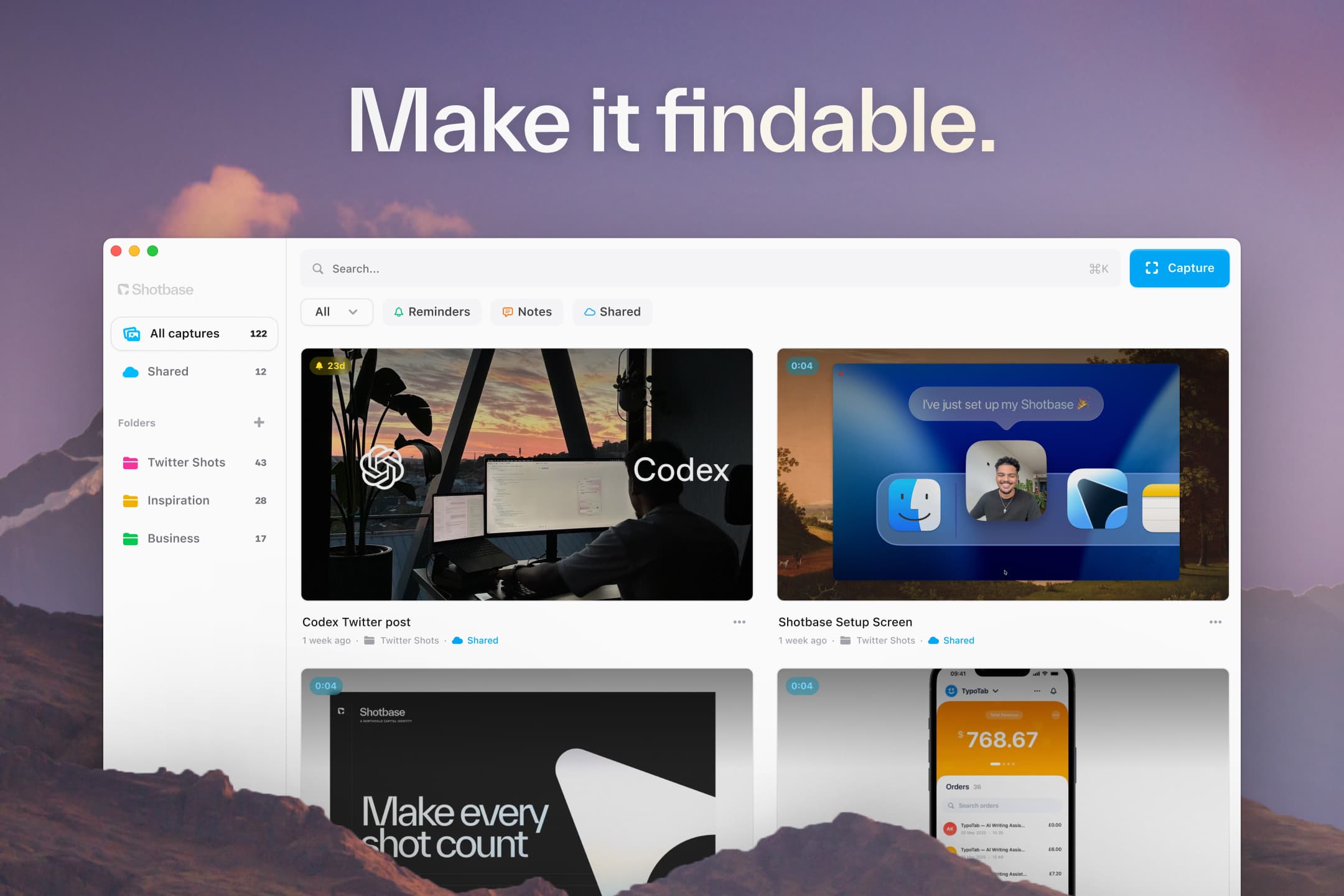
Shotbase’s capture library. Image: Shotbase’s Product Hunt launch.
Shotbase is a screen capture workspace for macOS. It handles screenshots, screen recordings, and webpage captures, with editing tools and a library to keep them together.
You can capture a window, part of your screen, or a scrolling page. You can then add annotations or presentation effects before exporting or sharing.
Its local AI features add another layer: automatic filenames, tags, and summaries. These are intended to make captures easier to find later, without manually naming every file. Local AI requires an Apple silicon Mac and is optional. Source: Shotbase.
For designers, that could mean keeping interface references alongside feedback screenshots. For founders and creators, it could mean making a demo and social visuals in the same workspace. Those are useful reasons to try it, rather than paying for features you only use occasionally.
Shotbase’s Screenshot Editor
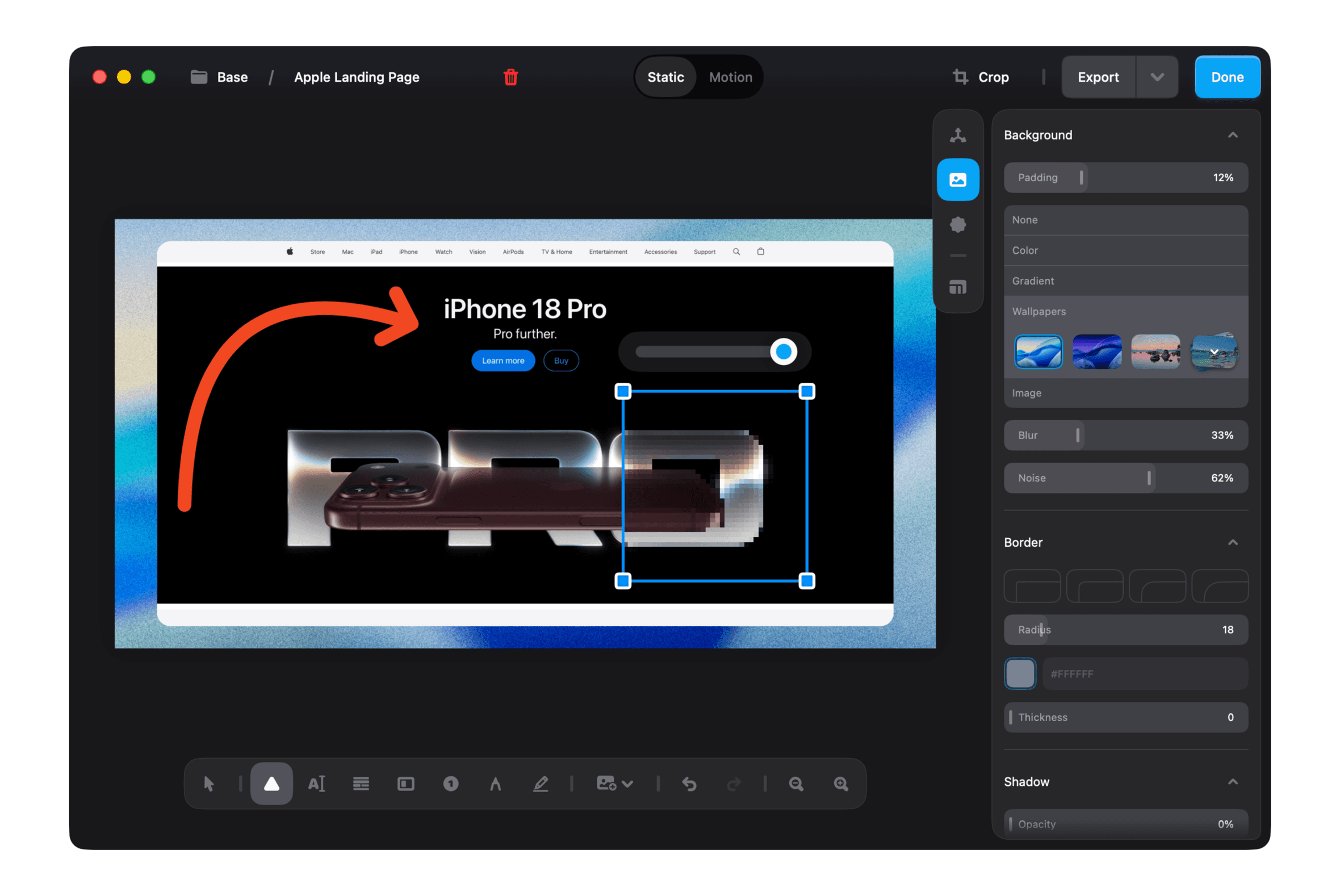
The screenshot editor covers two common jobs: explaining what is on your screen and preparing an image you want to present. You can mark up a bug report, but you can also turn a plain capture into a mockup for a product announcement, portfolio, or client presentation.
Annotations for Feedback and Walkthroughs
Arrows, text, highlights, shapes, and callouts let you point to the part of a screenshot that matters. That is useful when you need to explain a layout change, identify a problem, or show someone where to click.
For example, a designer could highlight a spacing issue and add a short note beside it. A support reply could use an arrow and a label to explain the next step. The screenshot carries the context that would otherwise need a longer written explanation.
Mockup Editing and Presentation
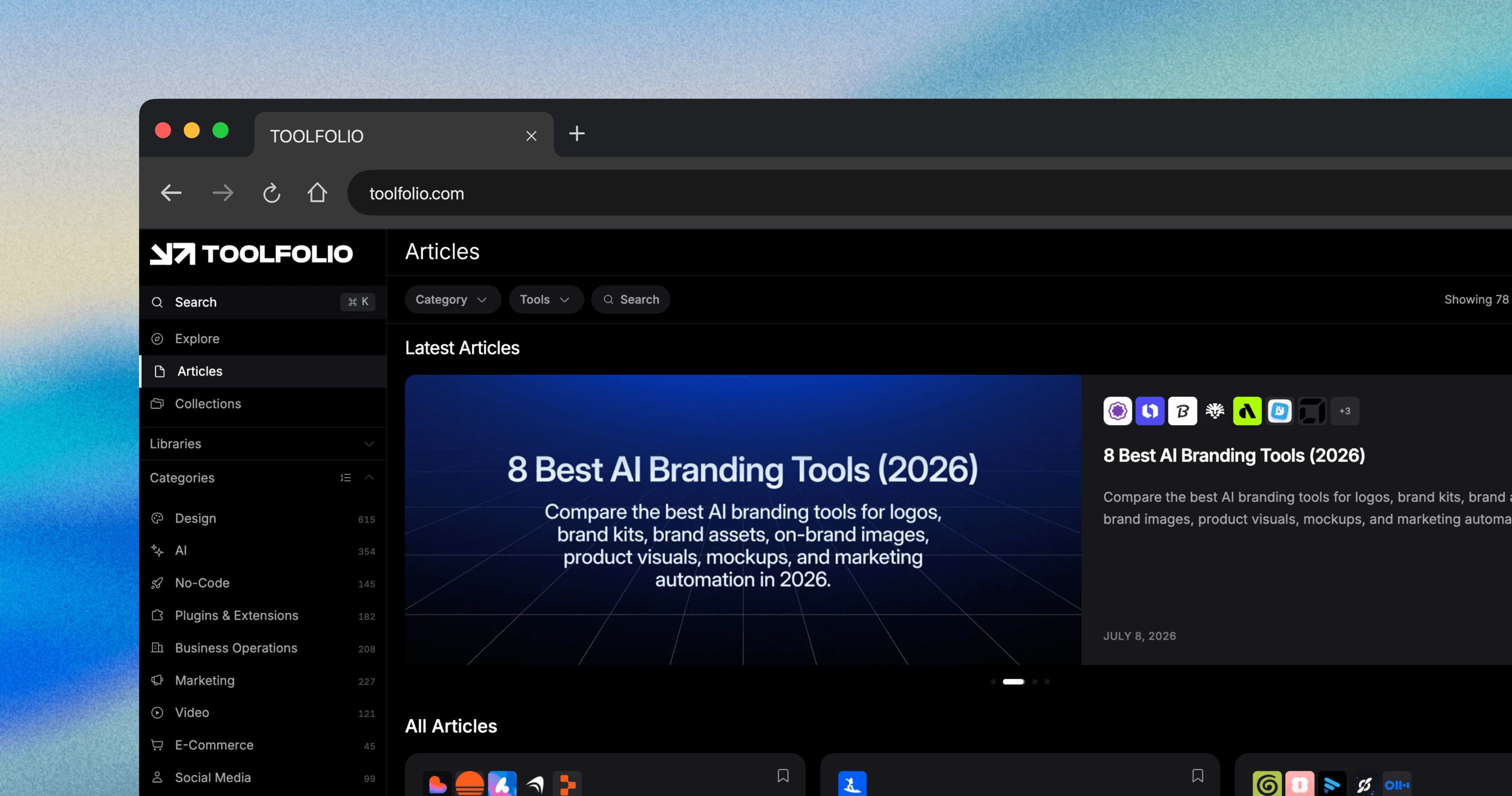
Browser mockup created with Shotbase. Image: Toolfolio team.
Shotbase also includes mockup editing capabilities, giving you a way to present a capture as a finished visual. Backgrounds, frames, padding, shadows, borders, and watermarks help you control how the screenshot sits within the image.
The distinction matters for creators. A screenshot that clearly documents a bug is not necessarily the image you want on a launch post. For a presentation, you might give the capture more breathing room, add a background, and use a frame or shadow to separate it from its surroundings.
Having those controls alongside annotations means you can explain a feature and prepare its presentation in the same editor. The practical benefit depends on how often you currently move screenshots into another design app just to finish them. Shotbase editor features.
Webpage Captures at Different Sizes
The capture tools also support full-page and viewport screenshots at mobile, tablet, desktop, or custom breakpoints, with light and dark mode options.
For web designers, that gives the editor useful starting material: captures of the same page at different widths that you can annotate or prepare for a review. These are webpage captures at different viewport sizes; they should not be confused with testing a site on physical devices. Web capture features.
Shotbase’s Screen Recording Capabilities
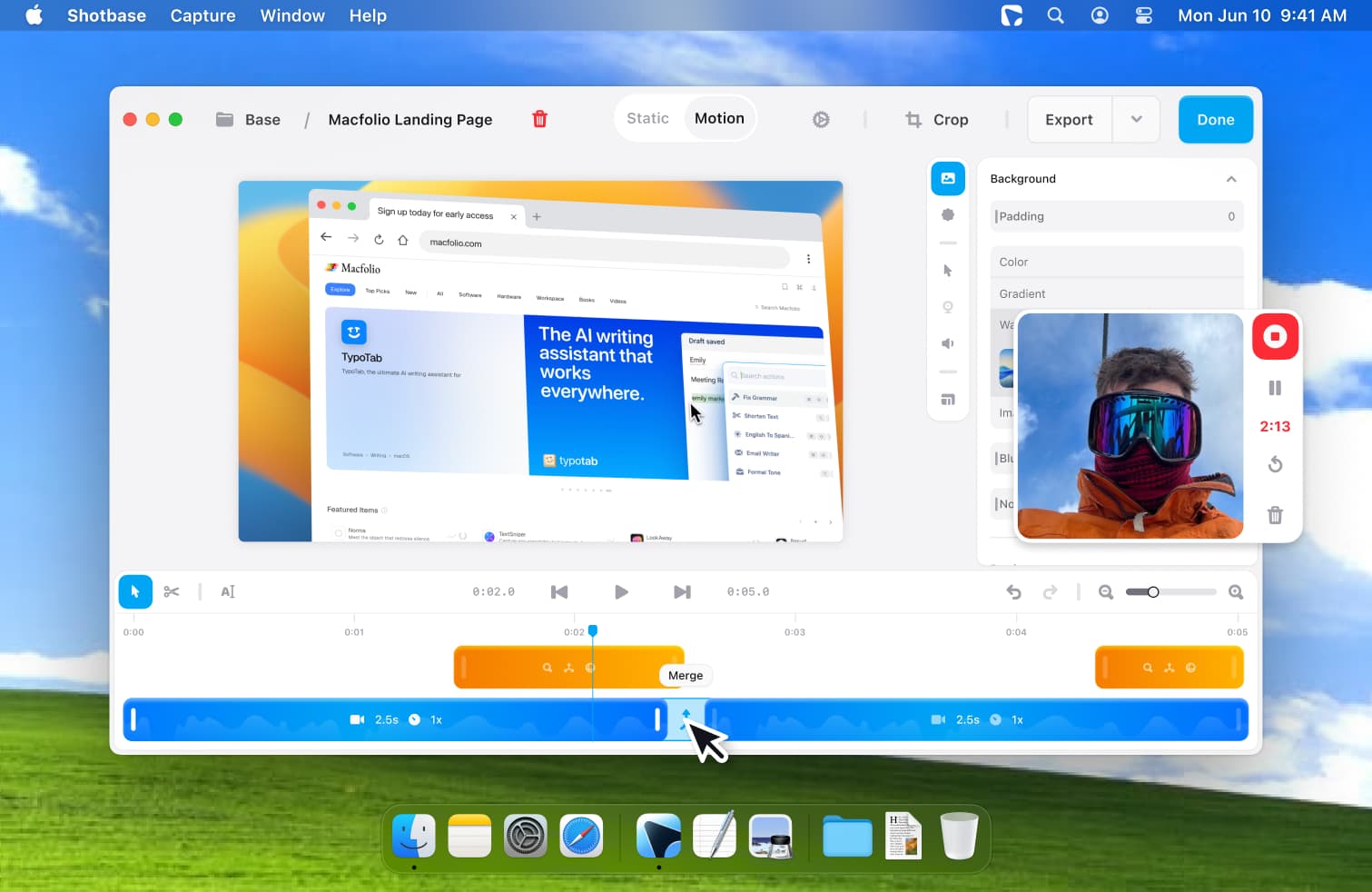
Screen recording is another substantial part of Shotbase. It gives you a way to show a sequence of actions, then edit the recording into a walkthrough or product demo within the same workspace.
Record a Workflow and Trim It Down
A recording helps when a still image cannot explain the interaction: opening a menu, moving through an onboarding flow, or reproducing a bug. Shotbase combines screen recording with editing and trimming, so you can remove unnecessary footage before sending the result.
For a short demo, that might mean keeping the steps that explain the feature and cutting the pauses around them. The goal is a clip that gets to the point without asking the viewer to watch the entire capture session.
Direct Attention With Zooms and Effects
Automatic zooms bring important parts of the recording closer. That is useful when the viewer needs to follow a small control or a detail that would be difficult to see in a full-screen recording.
Shotbase also offers 3D effects, along with text, shadows, and other presentation controls. These give creators more ways to style a product walkthrough or launch video. A support clip may only need a clear zoom; a promotional demo may benefit from more visual treatment. Screen recording features.
Watch Shotbase’s launch video on YouTube.
Keep and Share the Finished Recording
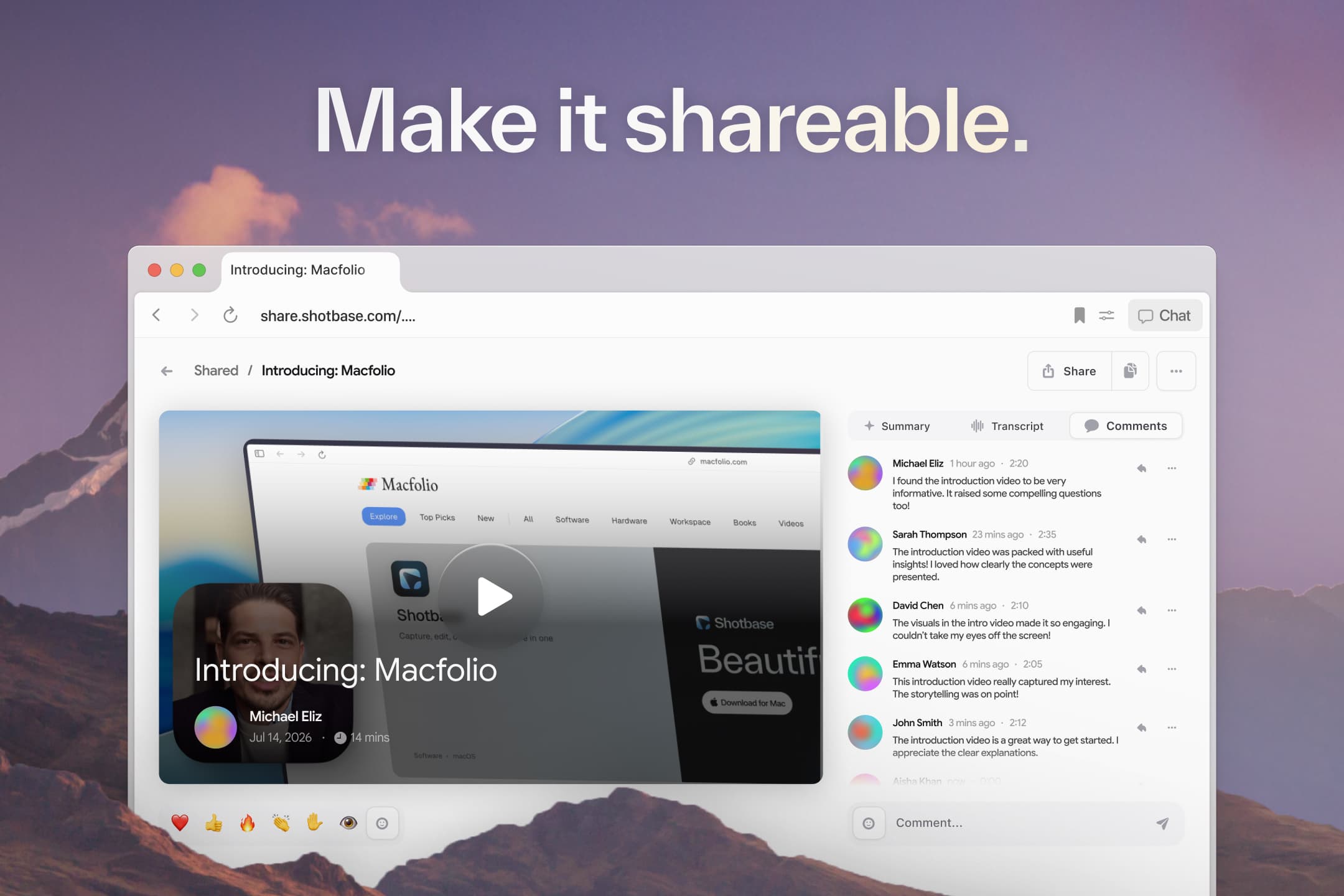
Shareable recording page. Image: Shotbase’s Product Hunt launch.
Recordings sit alongside screenshots and webpage captures in the library. You can keep the assets for a project together, then export a finished result or create a sharing link. Recipients can watch shared recordings in their browser without installing Shotbase.
The subscription conditions still apply: after the trial, Pro is required for new or newly edited exports and for active sharing links. That is worth considering if you plan to use Shotbase for ongoing client walkthroughs. Sharing and trial details.
Pros and Cons of Shotbase
The Good (Pros)
Screenshots and recordings live together. You can keep still images, webpage captures, and recordings in one library. If you regularly move between visual feedback and short demos, this gives you one place to manage that work.
Annotations and mockup editing share one editor. You can move from explaining a detail to preparing a visual for a presentation or social post, without transferring the capture to another app for those finishing touches.
Web capture supports different screen sizes. Shotbase lists full-page and viewport captures at mobile, tablet, desktop, and custom breakpoints. That is relevant when you need to show how the same website looks at different widths.
Recording and editing are connected. Trimming, automatic zooms, and presentation effects give you a way to turn a capture into a focused walkthrough within the same workspace.
Organization can happen on your Mac. Shotbase says its AI generates names, tags, and summaries locally, without sending image content to a remote model for analysis. This is appealing if your capture library contains client work or private references. It is a vendor-described capability, not an independent privacy audit. Feature details.
Frequent updates cover features and fixes. Shotbase’s changelog lists five releases in September 2026, through September 24. These include faster sharing, smaller downloads, recording fixes, and a choice of local AI models in version 1.5.0. That recent pace is a positive sign of active development, with improvements across capture, editing, and organization. Shotbase changelog.
The Tradeoffs (Cons)
The subscription matters even if you mainly work locally. After the seven-day trial, Pro is required to export new or newly edited work. You can still capture, view, edit, and organize, but that is a significant limitation if your main goal is to send the result to someone else.
Shared links depend on an active Pro plan. Shotbase’s FAQ says Pro is needed both to create sharing links and to keep existing ones active. If you put those links in client documentation or support replies, consider what happens when you stop subscribing. Keep exported copies of important deliverables.
Local AI has a hardware requirement. The automatic organization features require Apple silicon. Shotbase says you can use the app without local AI, with default filenames instead of automatically generated names and tags. Check your Mac’s compatibility before choosing it for the AI features.
A feature list cannot tell you how well it handles your workflow. This review has not measured scrolling-capture accuracy, recording performance, export quality, or AI tagging accuracy. Use the trial on the pages and projects you actually work with before replacing your current setup. Trial and feature conditions.
Shotbase Pricing
The pricing cards checked on September 21, 2026 show:
| Option | Listed price | Billing |
|---|---|---|
| Free trial | $0 for seven days | No card required |
| Pro Yearly | $13 per month equivalent | Billed yearly; $156 calculated over 12 months |
| Pro Monthly | $25 per month | Billed monthly; $300 if maintained for 12 months |
Both Pro options advertise access to every feature. The site also advertises a limited-time discount, so confirm the eligible offer and final charge before purchasing. The figures above use the standard displayed rates. Current Shotbase pricing.
What Happens After the Free Trial?
You can continue capturing, viewing, editing, and organizing your work. Pro is required for:
- Exporting new or newly edited work.
- Creating shareable links.
- Keeping existing shared links active.
That makes the trial useful for evaluating the full workflow, but it should not be confused with an unrestricted free screenshot tool. Shotbase FAQ.
Is Shotbase Private?
According to Shotbase, screenshots, recordings, and project files stay local by default. A capture is uploaded when you choose to create a sharing link or use another cloud feature.
Local AI analysis and online sharing are separate parts of the product. The AI running on your Mac does not mean a capture stays on your device after you choose to share it online.
Recipients can open shared captures in their browser without installing Shotbase. Shotbase’s privacy and sharing FAQ.
Our Verdict: Is Shotbase Worth It?
Shotbase is worth trying if you regularly create both screenshots and recordings, and want to keep those captures organized in the same app you use to edit them.
The subscription is easier to justify when the library and editing tools become part of your daily work. If you mainly take a screenshot, add an arrow, and send it, the recurring cost deserves a closer look.
Start the trial with a real project. Make one screenshot, one webpage capture, and one short recording. Check the exported results and try finding the files again later. If that process is noticeably better than your current setup, you have a concrete reason to keep it.