Yes, you can now move Arc to Zen Browser without scripts. Zen 1.24b (October 29, 2026) added a built-in Arc importer that brings over your Spaces, pinned tabs, folders and Favorites. Update Zen, quit Arc, open Settings > General > Import Data, pick Arc and tick "Spaces and pinned tabs". Do it before Arc stops working on December 22, 2026.
 Zen Browser,
 Arc and
 Dia on Toolfolio. Updated November 12, 2026.
Can you import Arc into Zen Browser?
Yes. For most of 2026 the answer was no: an official Zen GitHub discussion said cross-browser import from Arc was not supported, and people relied on community scripts or a bookmarks file. That changed on October 24, 2026, when Zen merged pull request #16130 ("Allow support to import from Arc & Dia"). It shipped to everyone in Zen 1.24b on October 29, 2026, and the release notes say: "You can now import Spaces and Profiles from Arc and Dia."
The current stable version on November 12, 2026 is Zen 1.24.1b (released November 6), so a normal update gets you the importer.
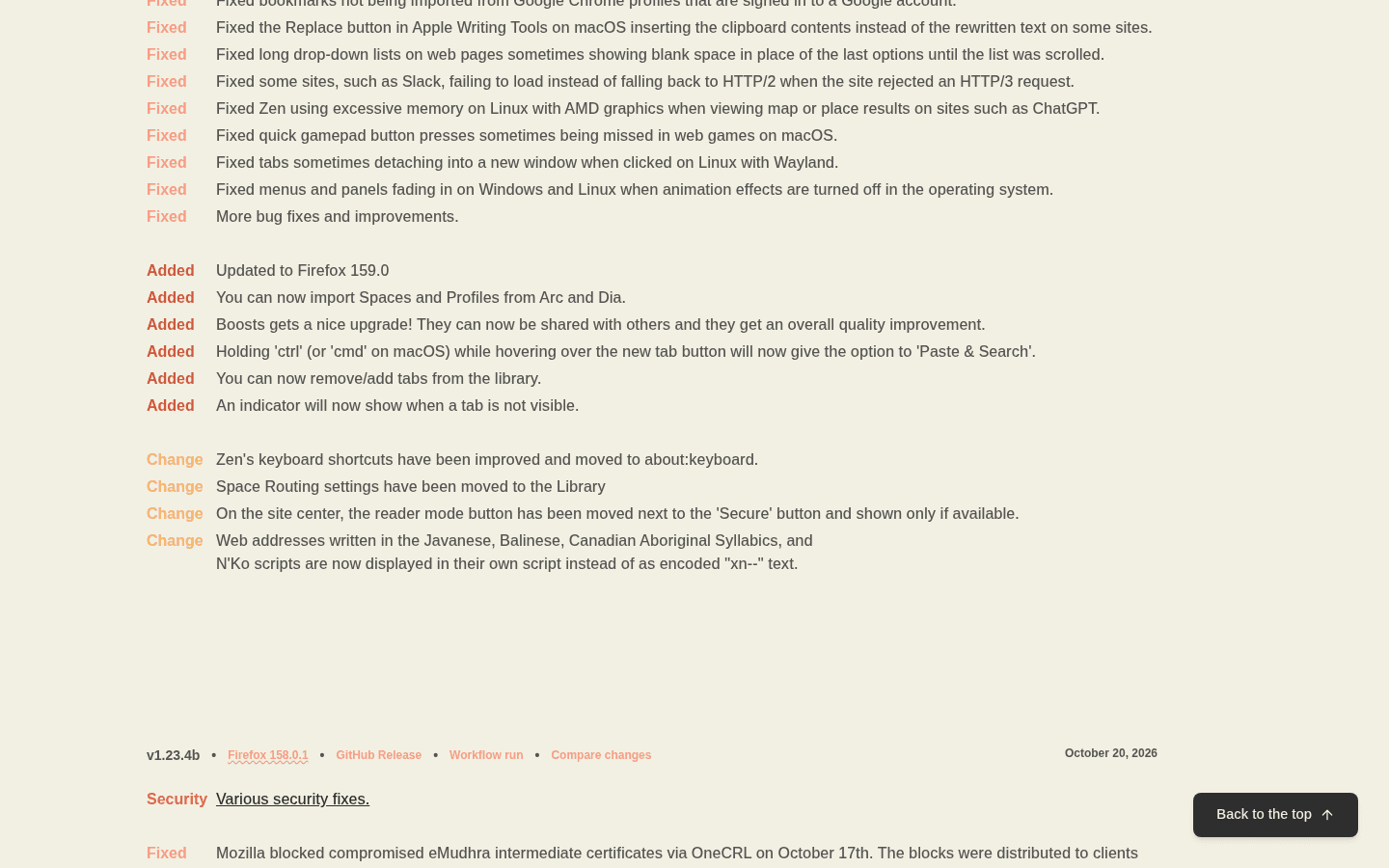
What moves from Arc to Zen (and what does not)
Here is how Arc's pieces map to Zen, based on the importer's code and Zen's own docs.
| In Arc | In Zen after import | Comes across? |
|---|---|---|
| Spaces | Spaces (Zen also calls them Workspaces) | Yes |
| Favorites (the icon row at the top) | Essentials | Yes |
| Pinned tabs | Pinned tabs in the matching Space | Yes |
| Folders, including nested folders | Folders in the matching Space | Yes |
| Space themes and colors | Space themes | Yes, the importer reads Arc themes |
| Extra Arc profiles | A Firefox container named after the profile | Yes, since the 1.24b profile fix |
| Bookmarks, history, passwords | Same, through the standard import wizard | Yes, it is a Chromium-style import |
| Chrome extensions | Firefox add-ons | No, reinstall from addons.mozilla.org |
| Easels | Nothing equivalent | No, export them from Arc first |
| Boosts | Zen Boosts (separate feature) | Not imported, rebuild by hand |
| Unpinned "Today" tabs | Not guaranteed | Pin anything you want to keep |
Two details worth knowing. First, the profile handling: Arc's main profile goes into normal tabs, and each extra Arc profile gets its own Firefox container, so its logins and cookies stay separate. Second, Little Arc windows: an early build created an empty "Space 9, Space 10" for every Little Arc window, but that bug (Zen issue #16196) was fixed on October 27, before 1.24b went out.
Before you start: three things to do in Arc
- Make sure Arc still opens and is up to date. Zen reads Arc's files on your computer. After December 22, 2026, Arc will not open, so you cannot check the result against the original.
- Pin what matters. The importer is built around Arc's sidebar: Favorites, pinned tabs and folders. Treat loose, unpinned tabs as "may not come across".
- Make a backup export. In Arc, go to Arc > Settings > Advanced > Export Data on macOS, or Settings (Control + Comma) > Advanced > Export Spaces and tabs > Export Data on Windows. Arc saves a file called Arc Data Export.md with a section per Space listing your Favorites, pinned tabs and folders as links. It is not a bookmarks file, but it is a safe record if anything goes wrong.
If you use Easels, export them too: Library > Easels > Export All Easels gives you a ZIP with each Easel as a web page. Easels are stored with your Arc account and disappear when it is deactivated.
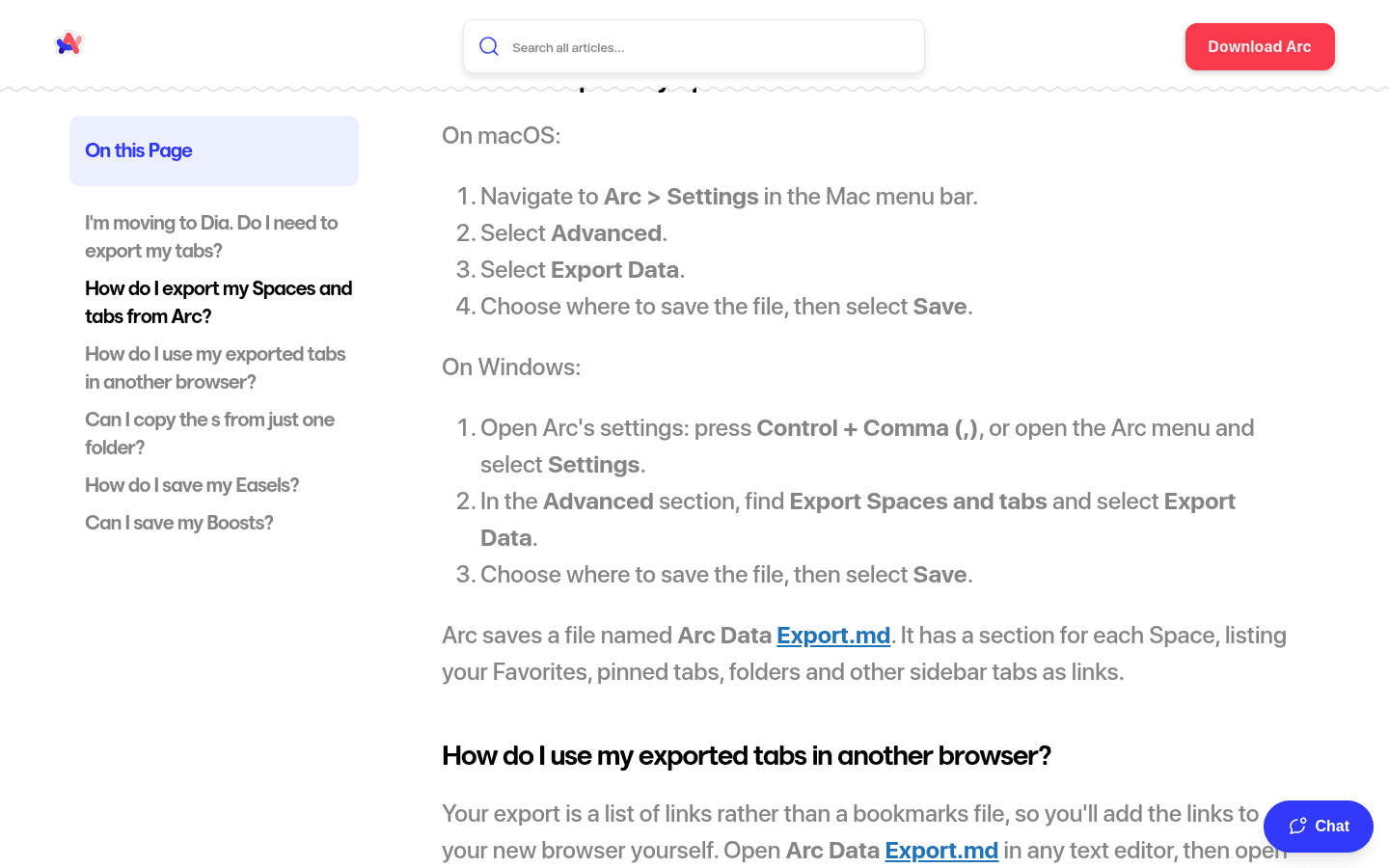
How to import Arc Spaces into Zen, step by step
- Install or update Zen. Download it from zen-browser.app for macOS, Windows or Linux. If you already have it, confirm you are on 1.24b or newer (the current build is 1.24.1b).
- Quit Arc completely. Arc is Chromium-based and locks its profile files while it runs, which can make an import fail or come out incomplete.
- Open the import wizard. On a fresh Zen install, the welcome screen now detects Arc and offers to import it. On an existing install, open Settings > General and click Import Data under Import Browser Data.
- Choose Arc as the source. Pick your Arc profile, or the "All profiles" option if you used more than one.
- Tick "Spaces and pinned tabs". This is the Zen-specific option that rebuilds your sidebar. Leave bookmarks, history and passwords ticked too if you want them.
- Run the import once and check it. When it finishes, Zen reports how many Spaces it created. Your Spaces appear as icons at the bottom of the sidebar, and your Arc Favorites sit in the Essentials row at the top.
If something looks wrong, delete the imported Spaces before you try again rather than stacking a second import on top.
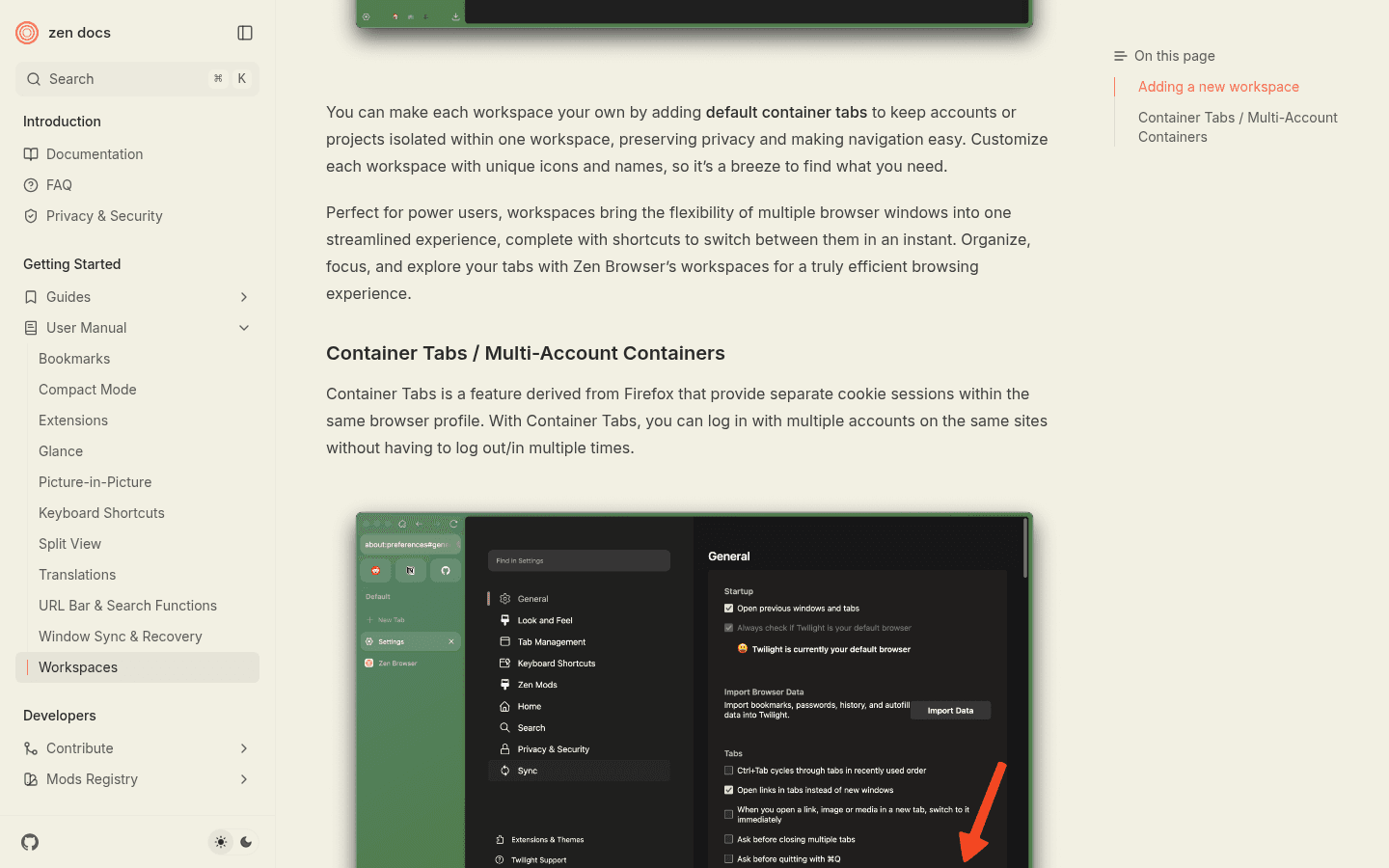
After the import: Arc features and their Zen equivalents
Most Arc habits have a direct match in Zen. These come from Zen's official user manual.
| Arc feature | Zen equivalent | How to use it |
|---|---|---|
| Spaces | Workspaces (Spaces) | Icons at the bottom of the sidebar; add one with the + icon |
| Favorites | Essentials | Pinned icon row at the top of the sidebar |
| Profiles | Container tabs per Space | Settings > General > Container Tabs, then set a default container on a Space |
| Peek | Glance | Alt + click a link (configurable in Settings > Look and Feel > Glance). Links from Essentials and pinned tabs open in Glance automatically |
| Split View | Split View | Drag a tab next to another, up to 4 tabs, with grid, vertical and horizontal layouts |
| Hide sidebar | Compact Mode | Ctrl + S, or right-click the toolbar > Compact Mode |
| Boosts | Zen Boosts | Rebuild per site; since 1.24b Boosts can be shared with others |
| Chrome extensions | Firefox add-ons | Install from addons.mozilla.org through the Add-ons Manager (Ctrl + Shift + A) |
Two things will feel different. Zen is built on Firefox, so Chrome extensions do not install; most popular ones have Firefox versions, but check any work-critical extension before you commit. And Firefox themes do not work in Zen, because Zen handles theming its own way through Zen Mods.
No importer? Fallback options
If you are stuck on an older Zen build or the importer misses something, there are two community routes. Neither is made by Zen, so back up your Zen profile before running them, and we did not run them on a real profile for this guide.
- arc2zen (rafcabezas/arc2zen on GitHub). The most popular community migration tool, with about 125 stars on November 12, 2026. It writes Arc Spaces into Zen directly. Close Zen fully before running it.
- Bookmarks file. Convert Arc's sidebar into an HTML bookmarks file with a community exporter, then use Zen's bookmark import. Your tabs land as bookmark folders, not Spaces, so you rebuild the Spaces by hand.
The Arc Data Export.md file from the section above also works as a manual checklist: open it in any text editor and reopen or pin the links you want.
Arc shutdown dates you need to know


Arc provides a library of interactive React components and blocks to accelerate UI development, enhancing creative workflows with motion elements.
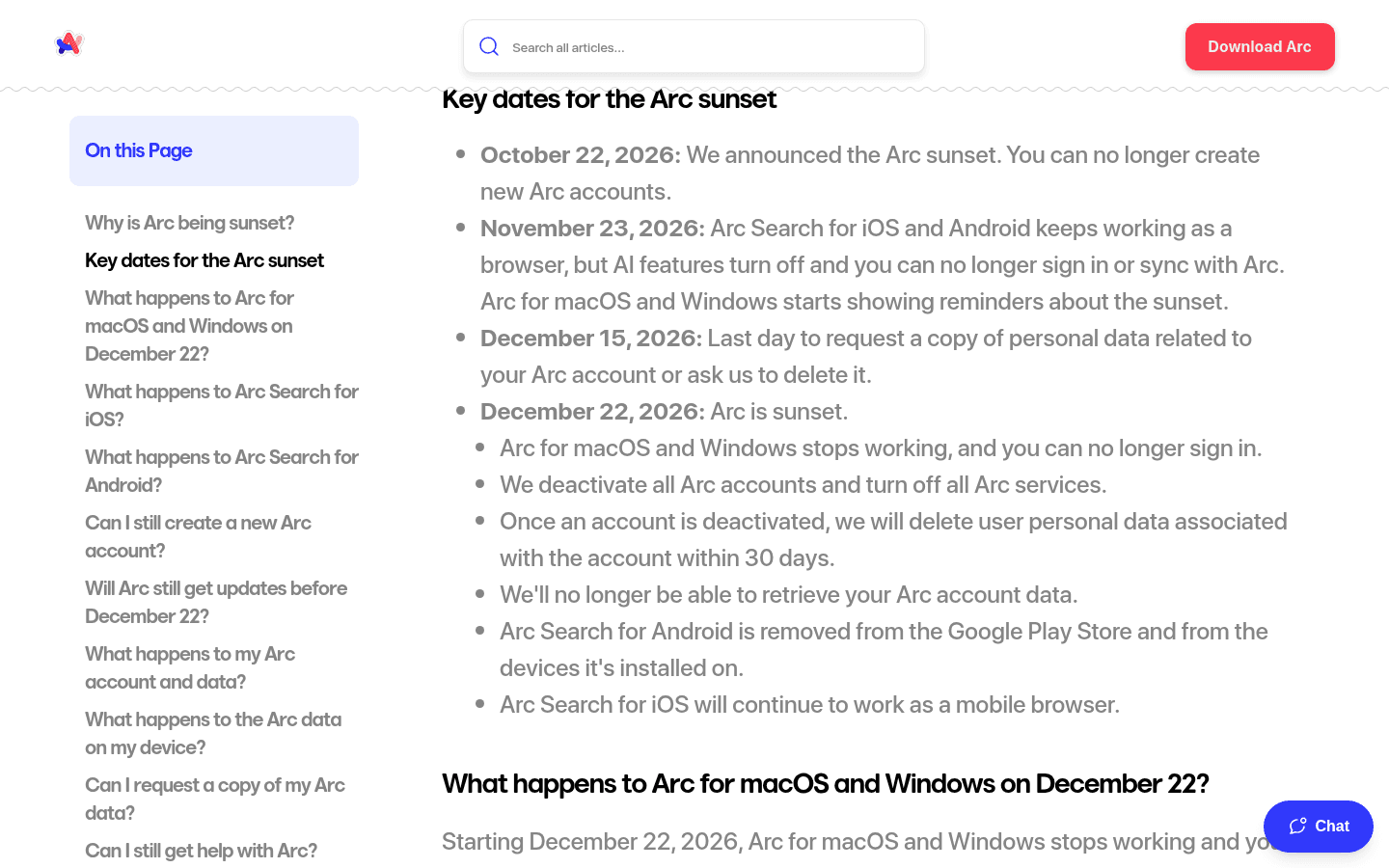
The Browser Company's official Help Center lists these dates:
| Date | What happens |
|---|---|
| October 22, 2026 | Sunset announced, no new Arc accounts |
| November 23, 2026 | Arc Search on iOS and Android loses AI features, sign-in and sync; Arc desktop starts showing sunset reminders |
| December 15, 2026 | Last day to request a copy of your Arc account data or ask for deletion |
| December 22, 2026 | Arc for macOS and Windows stops working, accounts are deactivated, Arc Search for Android is removed |
After December 22, Arc will not open, so you also cannot reach the local data Zen's importer needs. Plan your move before then, ideally before the reminders start on November 23.
Zen, Dia or something else?
Zen is the closest match to Arc's look: vertical sidebar, Spaces, Essentials, Glance and Split View, free and open source. It is the right pick if Arc's sidebar was the reason you used Arc.
Dia is The Browser Company's own successor. It imports Arc Spaces, Favorites, pinned tabs and folders directly, keeps Chrome extensions working, and adds an AI assistant, but it has paid plans (see our Dia pricing guide).  Crest and
 Vivaldi are other options, and our Arc alternatives guide compares them all. If you want AI features built in, see our AI browsers comparison.
FAQ
Can I import Arc into Zen Browser?
Yes. Since Zen 1.24b (October 29, 2026), the import wizard lists Arc as a source and has a "Spaces and pinned tabs" option that rebuilds your Spaces, pinned tabs, folders and Favorites.
How do I move my Spaces from Arc to Zen?
Quit Arc, open Zen's Settings > General > Import Data, choose Arc, pick your profile (or All profiles) and tick "Spaces and pinned tabs". Each Arc Space becomes a Zen Space.
Where do my Arc Favorites go in Zen?
They become Essentials, the icon row at the top of Zen's sidebar.
Does Zen import Arc pinned tabs and folders?
Yes, including nested folders. They land inside the matching Space.
Can I bring my Arc extensions to Zen?
No. Zen is based on Firefox, so it uses Firefox add-ons from addons.mozilla.org. Reinstall the Firefox version of each extension.
Is there an Arc to Zen GitHub tool?
Yes, several community tools exist, with rafcabezas/arc2zen the most popular. You only need them on older Zen versions, because Zen now has its own importer.
What happens to Arc on December 22, 2026?
Arc for macOS and Windows stops working, you can no longer sign in, and accounts are deactivated, with personal data deleted within 30 days.
Is Zen Browser better than Arc?
They feel similar: both use a vertical sidebar with Spaces and pinned tabs. Zen is free, open source and still developed, while Arc ends on December 22, 2026. The main tradeoff is Firefox add-ons instead of Chrome extensions.
Is Zen Browser safe?
Zen is open source on GitHub and tracks Firefox releases, including Mozilla's security fixes. Version 1.24.1b, for example, moved to Firefox 159.0.1 and lists Mozilla security advisory MFSA 2026-123 in its release notes.
Sources and verification notes
Arc importer details come from Zen's release notes (zen-browser.app/release-notes) and GitHub releases for 1.24b (October 29, 2026) and 1.24.1b (November 6, 2026), plus the merged pull requests #16130 (Arc and Dia import), #16201 (Little Arc empty-Space fix, issue #16196) and #16236 (profile import), all checked on November 12, 2026 (Europe/Athens). The profile-to-container mapping and "All profiles" option come from the importer's source code and strings in those pull requests. Zen feature names and shortcuts come from docs.zen-browser.app (Workspaces, Glance, Split View, Compact Mode, Extensions). Arc dates and export steps come from the official Arc Help Center (resources.arc.net). We did not run the importer or any community tool on a real Arc profile for this article, and we did not create any accounts. FAQ questions come from Google autocomplete for "arc to zen", "migrate arc to zen", "zen browser import", "zen browser vs arc" and "is zen browser". Features change quickly, so check Zen's release notes before you migrate.